1. Loading Task
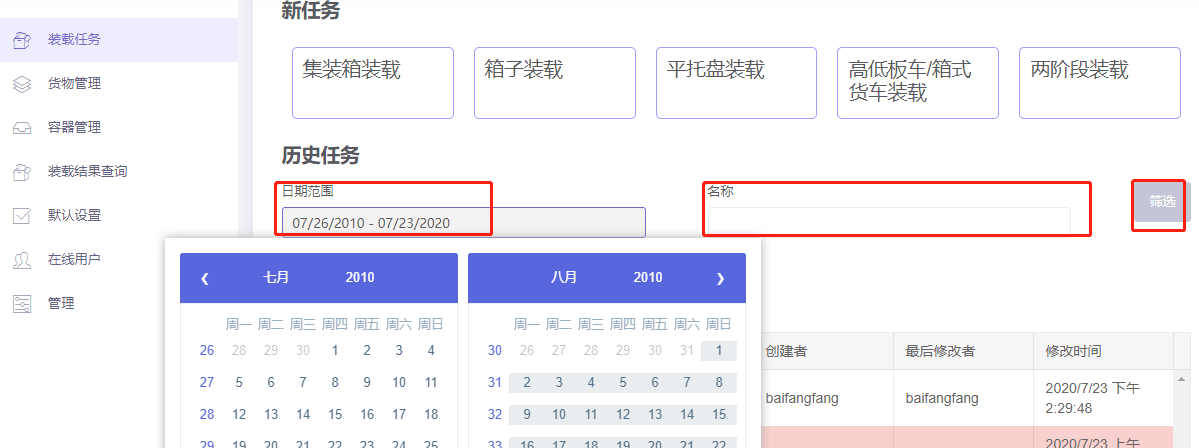
After signing in, you enter the Loading Task management interface. This interface is divided into two parts — a "New Task" area on top and a "Task History" list below:
1) The upper area is used to create new tasks. Users select an appropriate task type based on their needs; clicking it open to start the plan design.
There are five task types available: Loading Container, Loading Box, Loading Flat Pallet, Loading Platform Lorry/Truck, and 2-Steps Loading.
- Each type is further divided into "Multi Cargoes" loading and "Single Cargo" loading: "Multi Cargoes" loading refers to the calculation of loading for cargo of multiple specifications; "Single Cargo" loading deals with the calculation of the maximum quantity of a single specification.
- When choosing a loading type for a plan, only the corresponding containers can be added. For example, "Loading Container"" allows only containers to be added; "Loading Flat Pallet"" allows only pallets.
- 2-Steps loading means computing in one step how cargo is loaded onto intermediate packagings such as pallets or boxes, and then into containers.
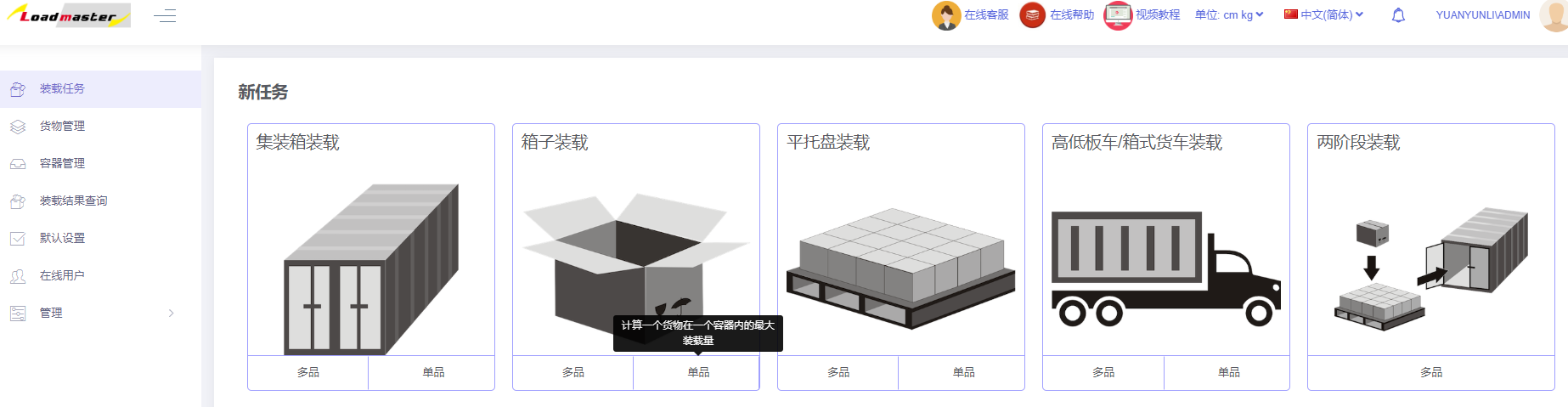
2) The lower area is used to view or edit previously created tasks. You can see each task's name, remarks, creator and modification time.
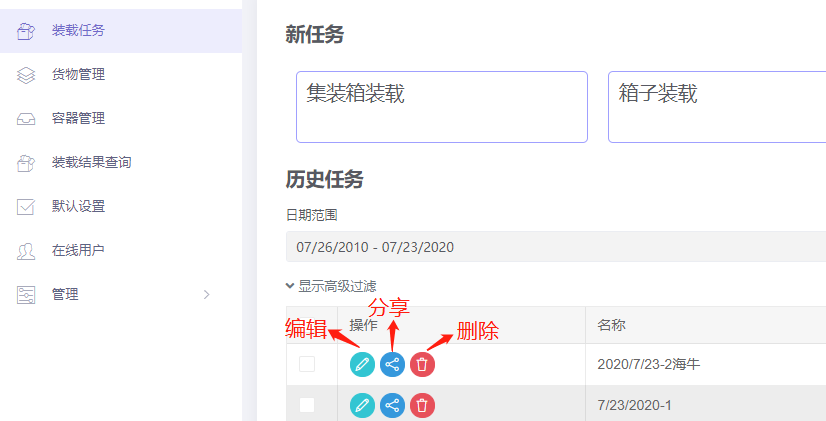
To the left of each task in the list, there are three tool buttons:
① The leftmost button is used to edit/view a task. Click it and the you can jumps to the plan design page to review or modify this load plan.
② The middle button is used to share the plan. You can scan a QR code or share a plan link to view the plan and loading steps on mobile devices for on-site loading guidance, or email it to colleagues and customers. For details see the related description.
③ The rightmost button is used to delete the loading task.
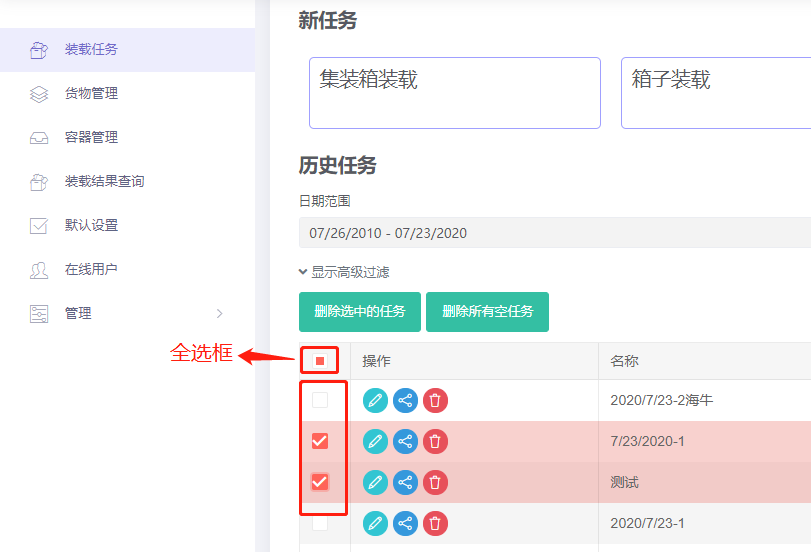
Note: ① To delete tasks in bulk, click the leftmost checkbox, then click "Delete selected tasks" that appears at the top. Empty tasks can also be deleted this way.
② Click the search box above the task list and enter keywords from the loading task name to quickly locate related loading tasks. You can also filter by date range.