4. Flatbed Truck Loading Optimization
In real scenarios some users need to compute loading of packaged cartons onto platform lorry/trucks. How is this defined in the software?
The following example explains:
Loading data:
| Name | Quantity | Length (cm) | Width (cm) | Height (cm) | Weight (kg) |
|---|---|---|---|---|---|
| A | 150 | 67.5 | 60.6 | 94.7 | 40 |
| B | 68 | 67.5 | 60.6 | 93.5 | 40 |
| C | 140 | 67.5 | 80 | 93 | 44 |
| D | 50 | 69 | 65.6 | 83.7 | 95 |
| E | 60 | 70.2 | 62.2 | 84 | 94 |
Loading requirements:
1) Cargo must only be placed with its height vertical to the ground.
2) Load onto a 17.5 m high/low platform truck; Hathpace Length 3.4 m, height 0.2 m.
3) The maximum allowed cargo placement height is 3.6 m.
Based on these requirements, choose the task type "Loading Platform Lorry/Truck/ Multi-Cargoes" and click to enter.
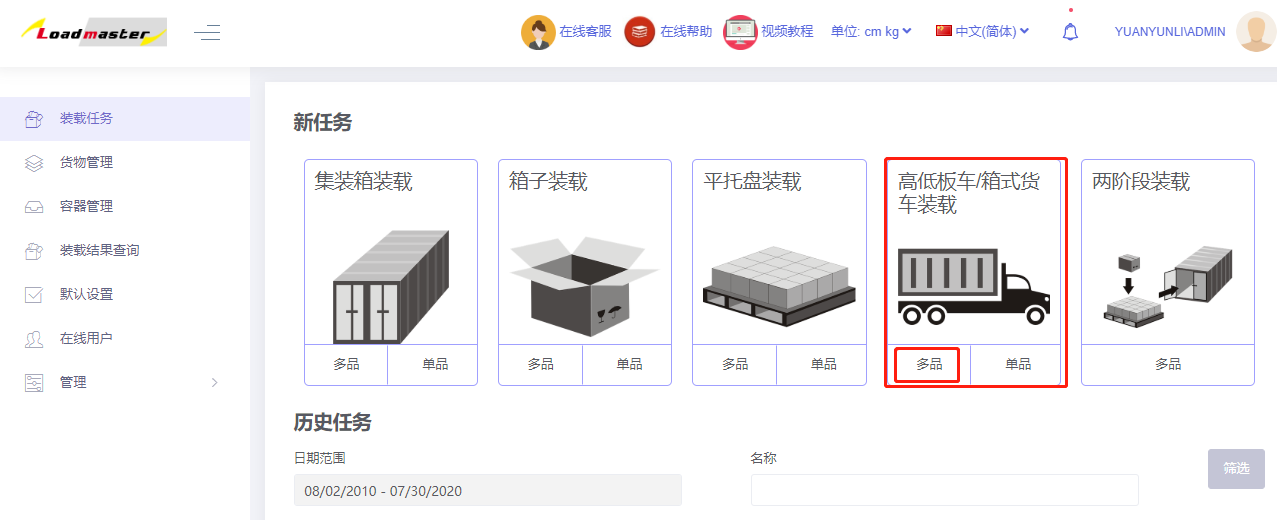
You enter the Basic Information page; basic information is optional — fill in PO number, waybill, destination port, etc. as needed for later lookup. Then start designing the plan:
Step 1: Click Cargo on the left to enter the Cargo interface. Because there are many cargo types, use Excel batch import.
1) Get the import template: click Add cargo → Get Cargo Import Template and save it to your desktop.
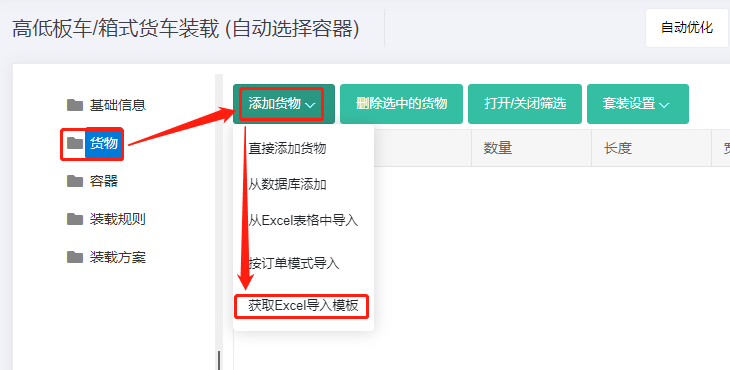
2) Fill in the import template (the downloaded template opens automatically):
① Copy in the cargo name, quantity, length/width/height — these are required. Weight is the gross weight per item; for light cargo it may be omitted. For heavy cargo it must be filled for safe transport. Match units.
② Define placement methods. Because this case requires height perpendicular to the ground only, i.e. Stand and Stand_Rotate, set the "Allowed" column to "0" for other methods (0 = not allowed; 1 or blank = allowed).
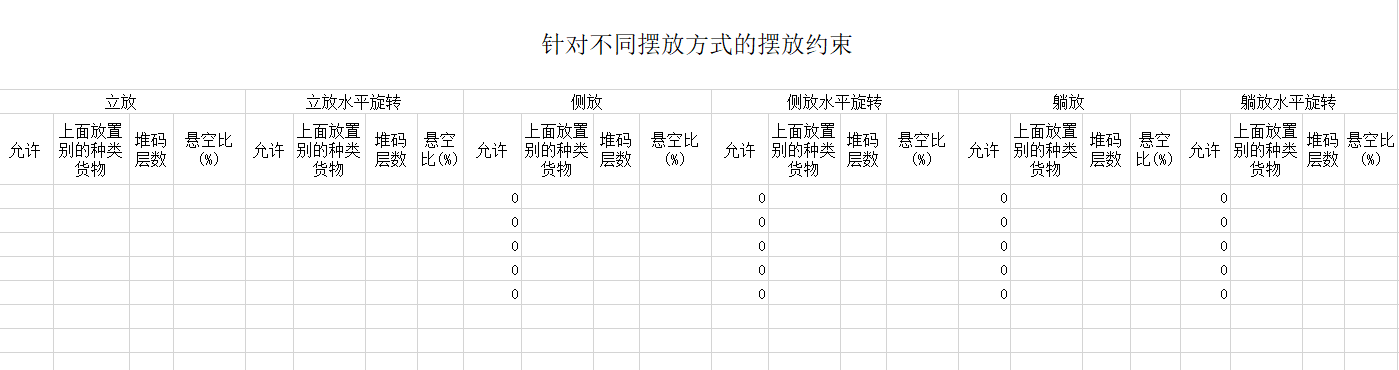
This case does not involve other loading requirements, so leave other template parameters at default. For other requirements, see the relevant sections above. Save and close.
3) Return to the Cargo interface, click Add cargo → Import from Excel, locate the completed template and click Open — all cargo data is imported.

Step 2: Click Container on the left, click Add from database, find the 17.5 m high/low platform truck in the list and double-click to import. Because the maximum allowed placement height is 3.6 m, set the flatbed height to 360 cm; then set the high-deck length to 340 and width to 20 on the right — the red part in the figure represents the high deck.
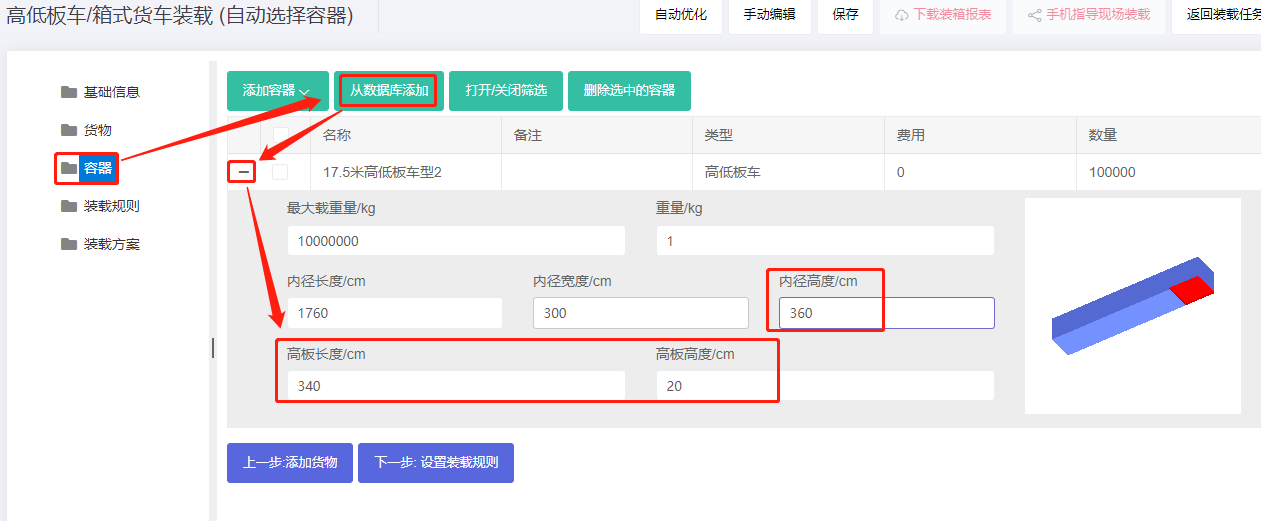
Note: in real loading, cargo may overhang the vehicle, but the algorithm by default does not allow overhang. Increase the flatbed's length and width by 1–5 cm to allow for this in practice.
Step 3: Click Loading rules on the left. This case does not involve other loading requirements, so keep the defaults.
Click Loading Result to obtain the plan. The container list on the left shows that this batch fits on one flatbed. The middle is the 3D loading view; on the right are the cargo statistics and loading steps for the current container.
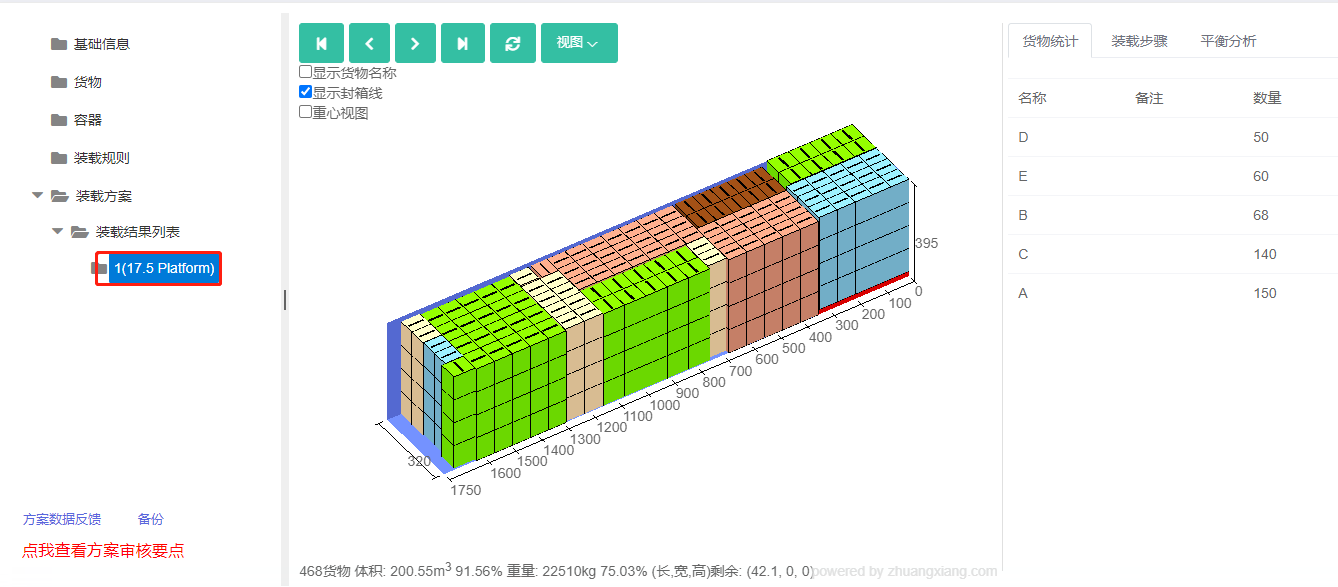
After reviewing the plan, share it for mobile-guided on-site loading or download the loading report for packing list and customs declaration. See the documentation for details.