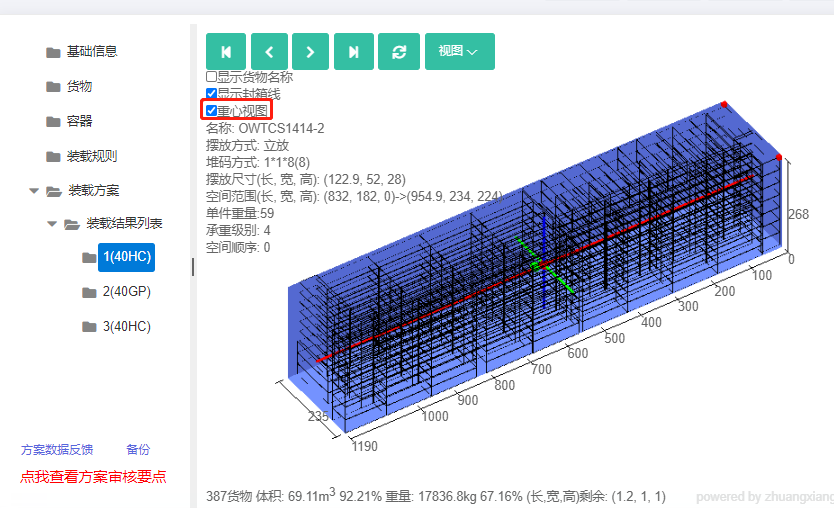
5) Loading Plan
The Loading Plan interface mainly shows the resulting plan:
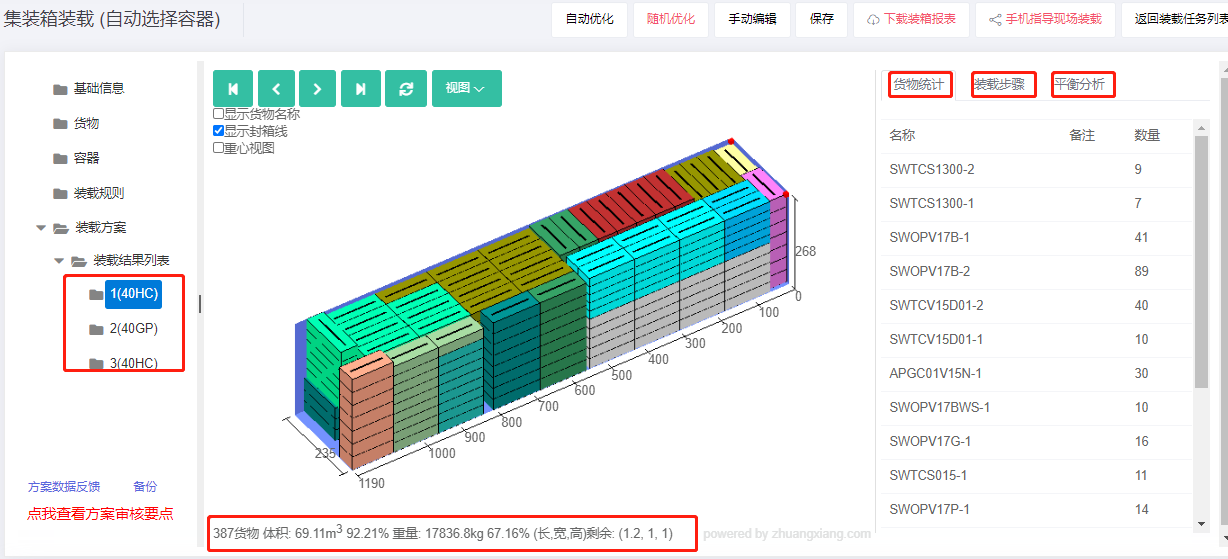
1) On the left is container usage, showing which container specifications are used in the plan and how many have been used.
2) The middle area is the 3D rendering of the current container. Click container names to view each container's 3D view.
3) On the right are the cargo statistics, loading steps and balance analysis for the current container.
4) In the lower-left are packed volume, volume utilization, weight, weight utilization and surplus length/width/height dimensions for the current container.
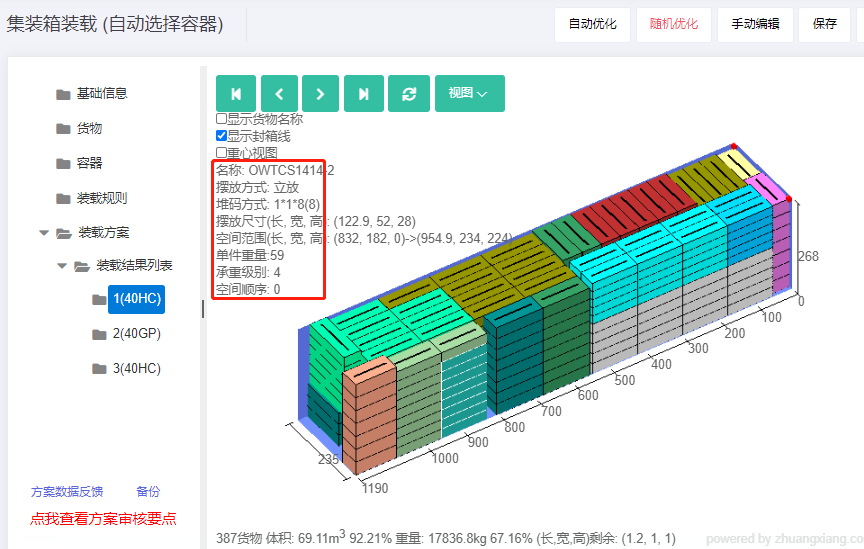
5) In the upper-left of the 3D view, there is a play button to view the loading step by step; you can also view the container's top view, rear view, etc. Click a loading block to see, in the upper-left, the block's cargo name, loading orientation, pile mode (rows × columns × layers and total quantity), cargo size, Space Range and related parameters.
6) Below the play button you can choose whether to show cargo names in the 3D view, whether to show carton-sealing lines, and view the center-of-gravity view.