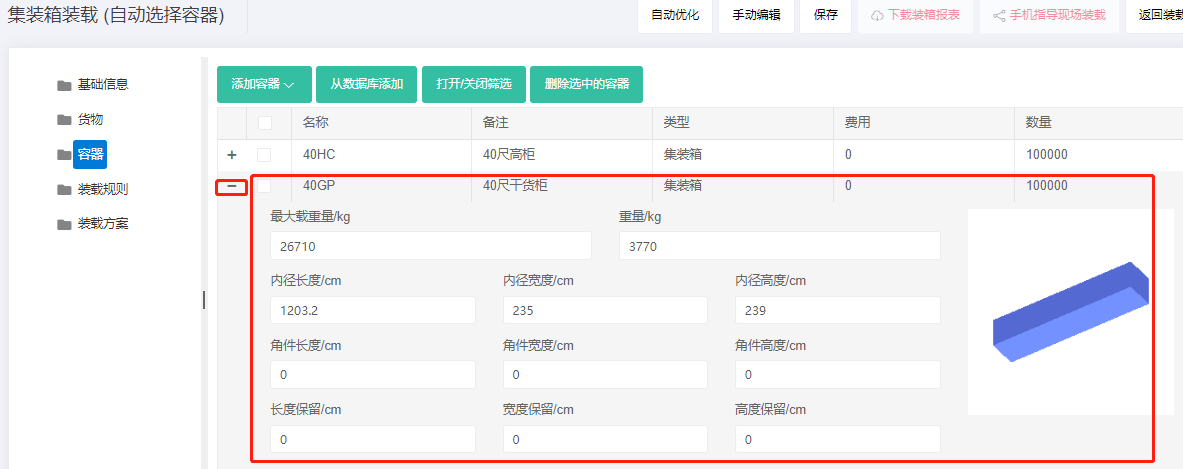
3) Container
The Container interface is used to add containers for loading cargo and to view or edit container-related information.
The page is divided into two parts: function buttons on top, container list below.
1) The function buttons on top include: "Add container", "Import from database", "Turn on/off filter", "Delete Selected Containers".
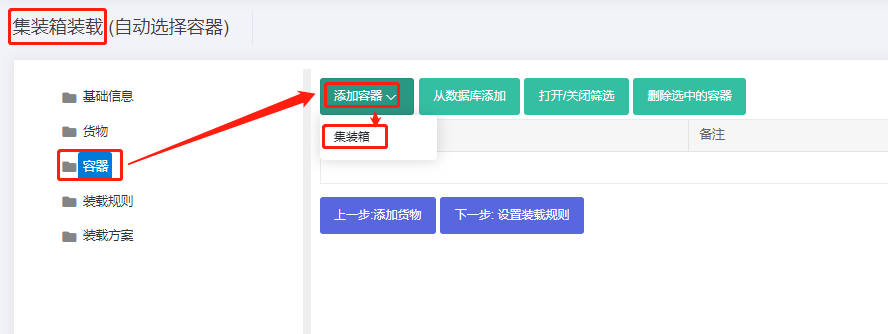
① Add container directly adds containers for the chosen loading-task type. For example, Loading Container task allows only containers to be added; Loading Flat Pallet allows only pallets to be added.
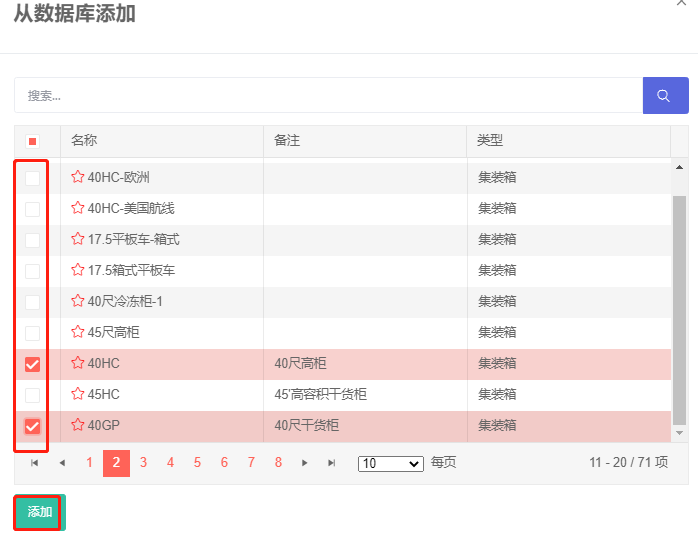
② Import from database import containers from the container database. Commonly used containers can be saved in the database to avoid re-entering each time, improving subsequent loading-calculation efficiency.
③ Turn on/off filter toggles the keyword filter.
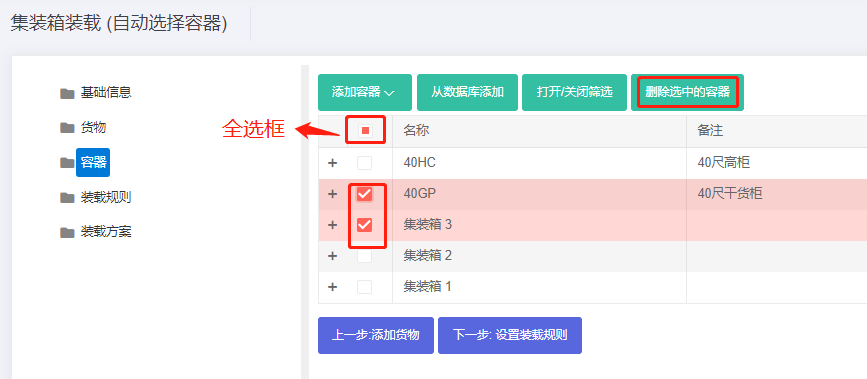
④ Delete Selected Containers allows to delete selected containers in bulk. Check the boxes on the left of the list to select containers, then click Delete Selected Containers. Note: clicking the box at the top-left of the list to select all containers.
2) Below is the list of added containers. On the left of each row is a plus button: click to view and edit related parameters; see Container properties. On the right of each row are the container name, description, type; cost and quantity which can be edited.