a. How to first palletize cargo and then load into containers
When cargo must be palletized first and then loaded into containers, how is this defined?
Example:
Loading data:
| Name | Qty | Length (cm) | Width (cm) | Height (cm) |
|---|---|---|---|---|
| A | 320 | 60 | 50 | 20 |
| B | 360 | 30 | 25 | 20 |
| C | 128 | 55 | 55 | 30 |
| D | 240 | 25 | 55 | 30 |
Loading requirements:
1) Length must not be vertical to the ground.
2) Compute, in one step, how to palletize cargo, what pallet types to use, and which containers fit best — and how many of each.
3) Pallet height limit 1.1 m (including pallet height).
Choose the 2-Steps loading task type.
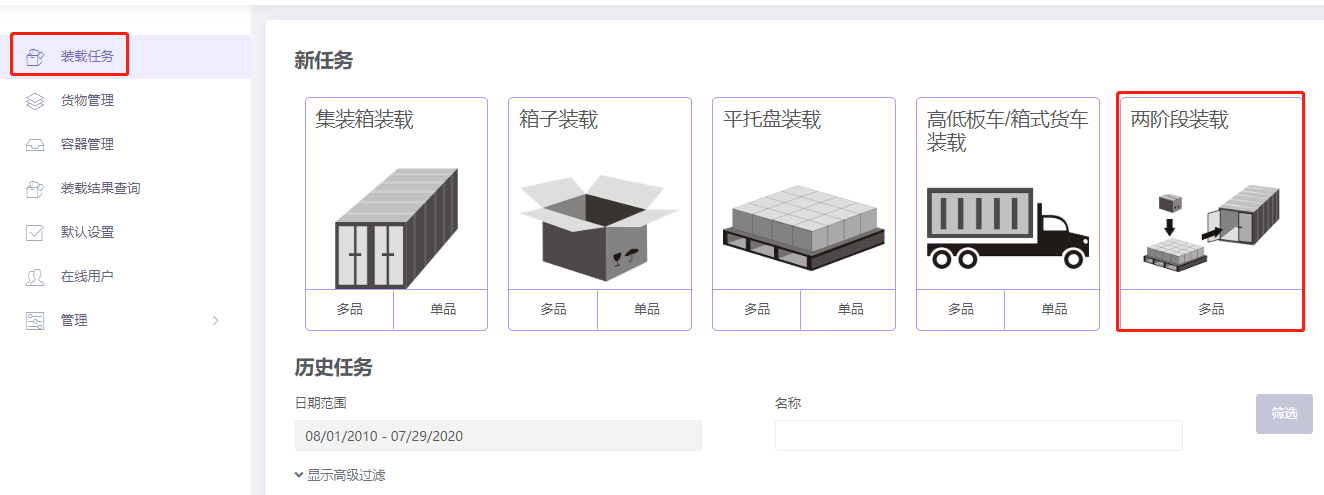
You enter the Basic Information page; basic information is optional. Then begin:
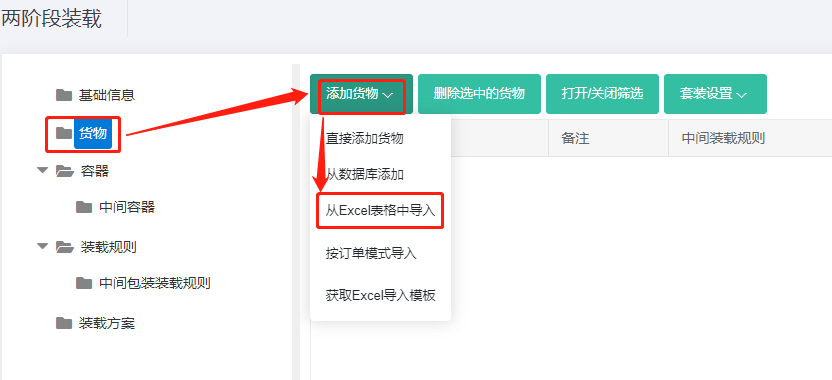
Step 1: Click Cargo on the left. Because there are many types, use Excel batch import.
1) Get the template: click Add cargo → Get Excel import template.
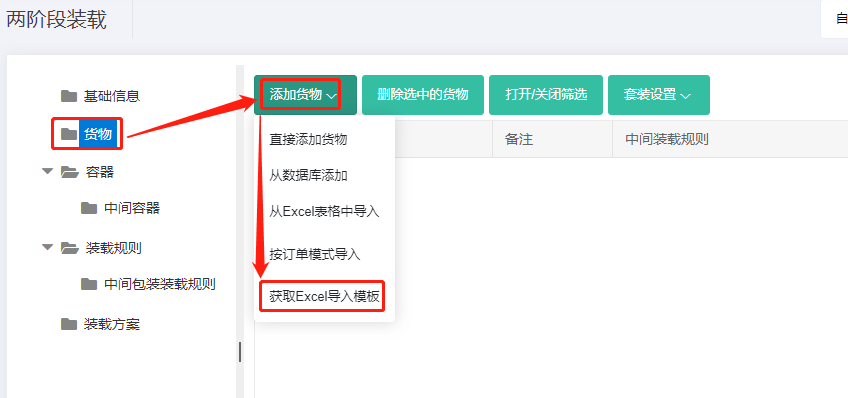
2) Fill in the template:
① Copy name, quantity, length/width/height — required. Weight is the gross weight per item; for light cargo it may be omitted.
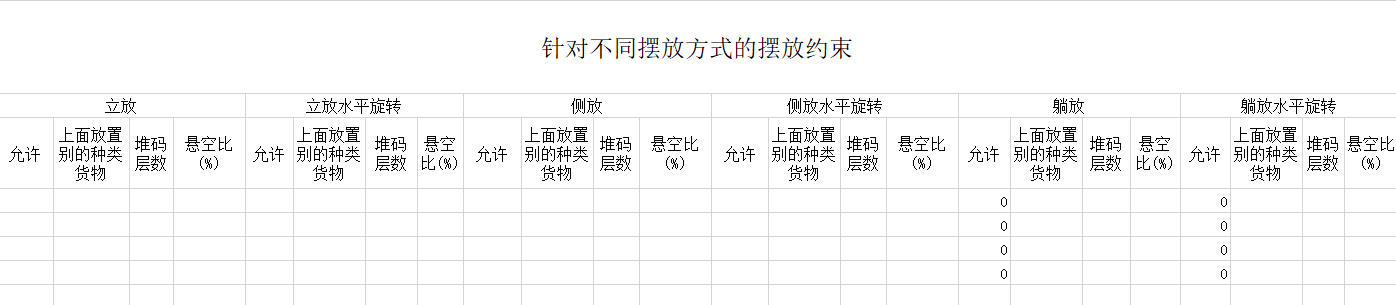
② Define placement methods. Here length must not be vertical to the ground — set the "Allowed" column to "0" for Lay and Lay——Rotate.
③ Define loading attributes. Because cargo must be palletized first, set "Intermediate Packing Method" to "1" for all (0 or blank = load directly into container; 1 = free choice of pallet/box; 2 = use designated intermediate packaging).
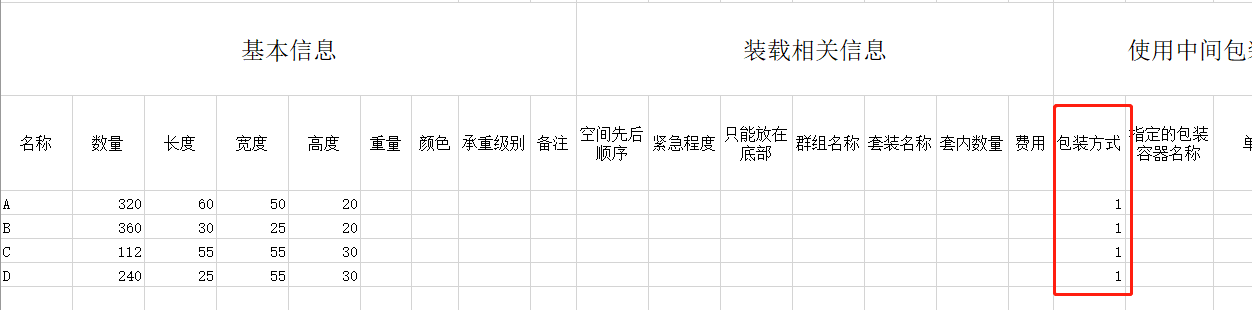
Other parameters left at default. Save and close.
3) Return to the Cargo interface and Import from Excel.
Step 2: Click Container on the left and add containers. Because the user does not know which container type or how many to use, add common types. Click Add from database, check 20GP, 40GP and 40HC, click Add, close, then set the reserved size for each. See How to simulate carton expansion and manual placement gaps.
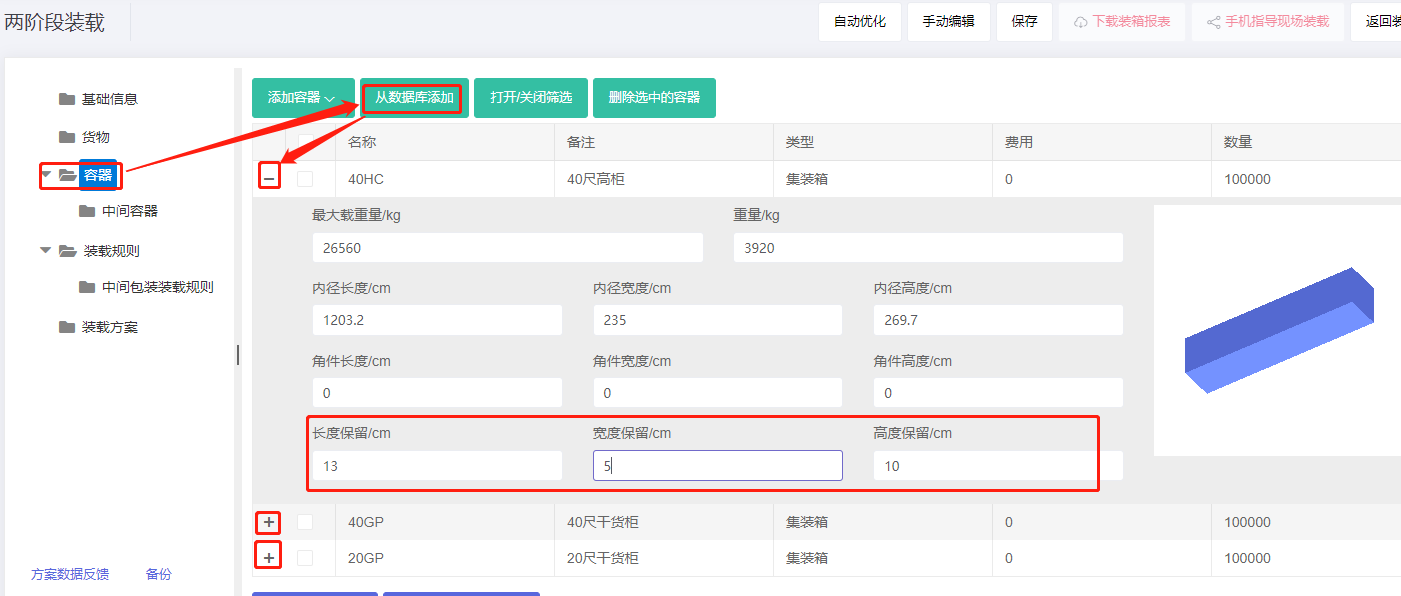
Note: this case is pallet-into-container; for forklift convenience, set the height reserved size to 10 cm. This deducts the 10 cm corner casting so the corner-casting size need not be set.
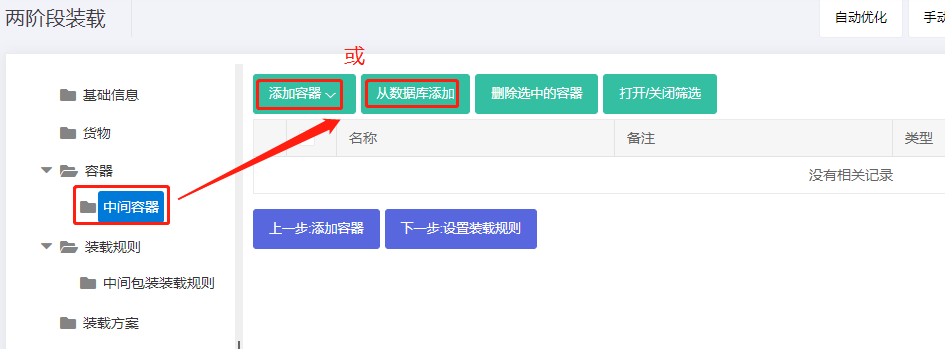
Step 3: Click Intermediate container on the left to add pallets. Add common pallets so the software can select. If a common pallet is not in the database, click Add Container → Flat pallet and edit name, length/width/height. Maintain commonly used pallets in the database for reuse; see Container Management.
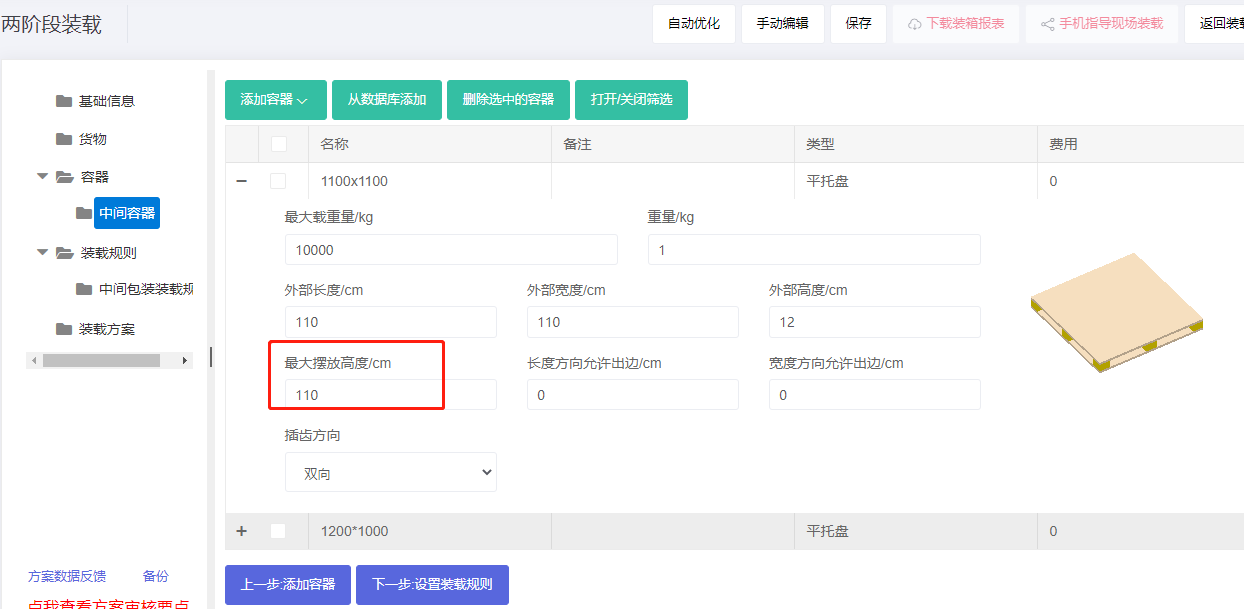
For this case, click Add from database, locate common European and Asian standard pallets, import and close. Set the maximum placement height to 110 cm for each.
Step 4: Click Loading rules to define rules for pallets-into-containers. No other requirements, so keep defaults.
Step 5: Click Medial Loading Rules to define rules for palletizing. No other requirements, so keep defaults.
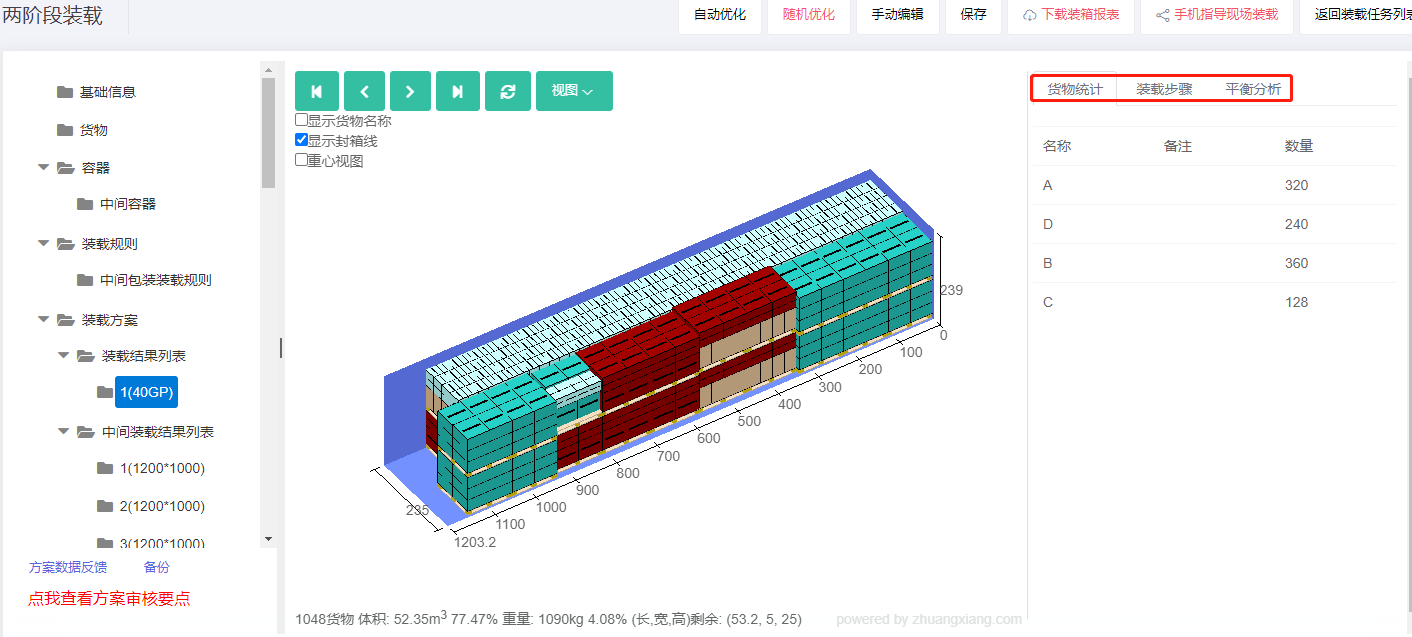
Click Loading Result. From the container list on the left, this batch uses 32 1200×1000 pallets, 10 1100×1100 pallets, finally fitting into one 40GP. Click each container to see its 3D view, cargo statistics, loading steps and balance analysis.
After review, share the plan to mobile or download the loading report.