a. Cargo Management
If a product's dimensions are fixed and do not change with orders, you can batch import the cargo data into the software's database once. This improves later loading-calculation efficiency.
There are two ways: direct add and batch import. Choose "Import from Excel" or one-by-one "Create New Cargo" depending on the amount of cargo data.
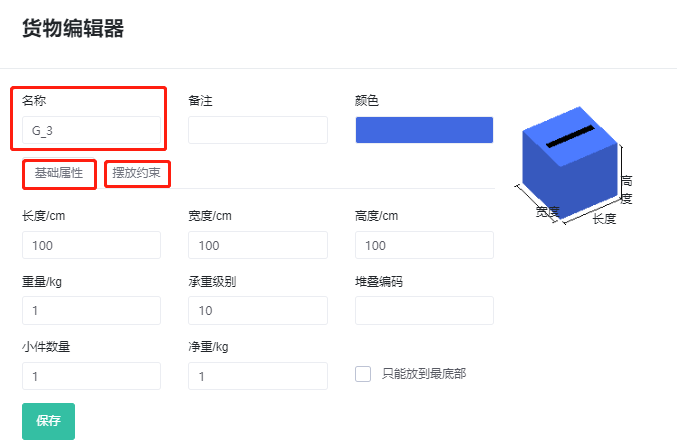
1) Add directly: Click "Create New Cargo", then edit the cargo name (the name must be unique), length/width/height, placement mode, etc. You can also define the cargo's load-bearing level. Finally click Save and the cargo is added to the database.
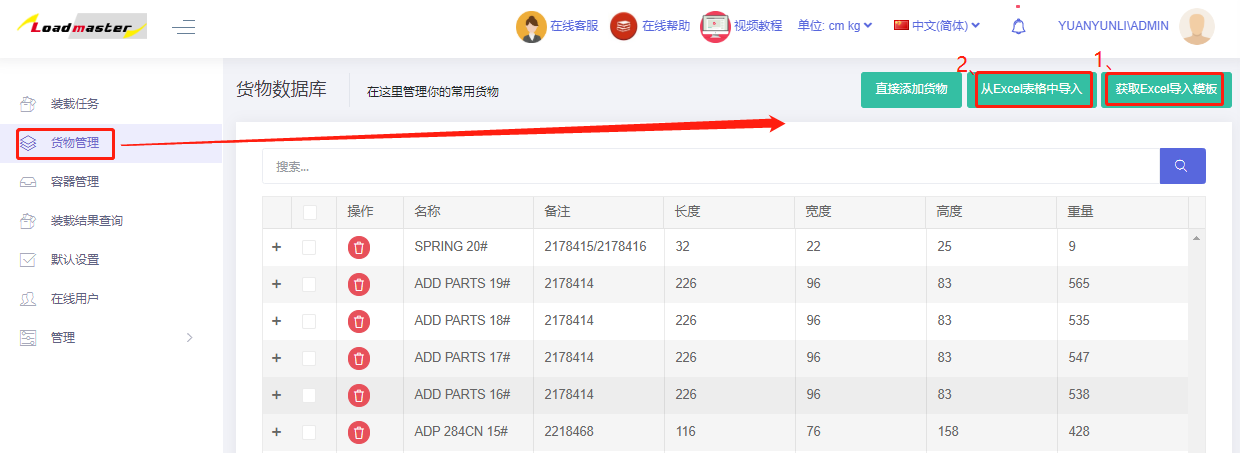
In the cargo management interface upper-right: "Get Cargo Type Import Template — fill in the template — Import from Excel".
Template instructions
- Cargo names must be unique; no duplicates.
- The Description column can have duplicates.
- Weight cannot be empty. For light cargo of unknown weight, you can enter 1.
- The template defaults to allowing all six placement modes (any orientation). Just fill 0 under "Allowed" for placement modes that are not allowed: 0 = not allowed; 1 or empty = allowed.
- Cargo parameters such as "Stacking Orders" and "Bottom Only" can also be maintained in the database.
For cargo that has already been initialized, in subsequent loading calculations the Cargo Import Template does not need to be filled in with already-maintained parameters such as length/width/height, weight or placement mode — only the cargo name, quantity and any other parameters need to be entered. However, the cargo name in the Cargo Import Template must exactly match the cargo name stored in the software, so that the software can automatically fetch the cargo's dimensions, placement mode and other information from the database based on the cargo name.