p. How to lock some containers and recalculate the rest
You can lock the loading plan for some containers/boxes and recompute the others. You can modify placement, parameters or rules, or add/remove cargo for the unlocked containers.
Example:
Loading data:
| Name | Qty | Length (cm) | Width (cm) | Height (cm) |
|---|---|---|---|---|
| A | 850 | 76.4 | 47.1 | 39.5 |
| B | 1000 | 72.7 | 42.2 | 38.2 |
| C | 1100 | 62.2 | 39.2 | 34.2 |
Loading requirements:
1) Height vertical to the ground only.
2) Keep the same cargo together; if there is space above, other cargo may be placed there.
3) Calculate the number of 40HC needed.
Choose Loading Container / Multi-Cargoes.
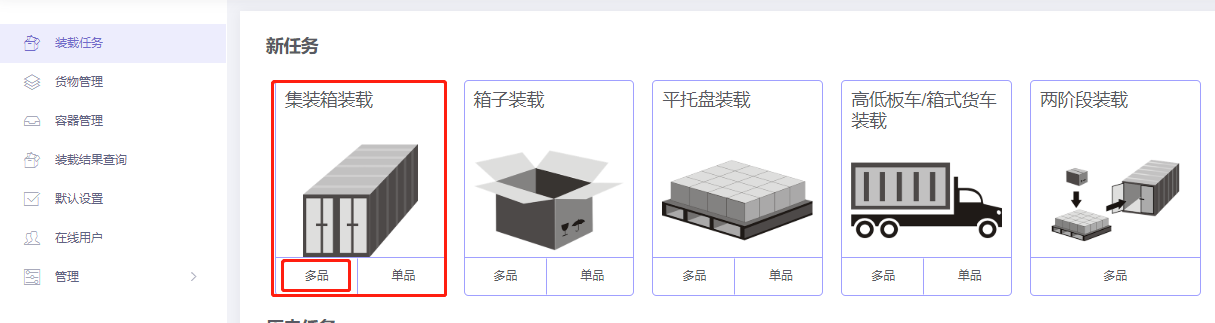
Step 1: Cargo → Excel batch import.
1) Get template.

2) Fill template:
① Name, qty, dimensions.
② Allow only Stand and Stand_Rotate.

3) Import from Excel.

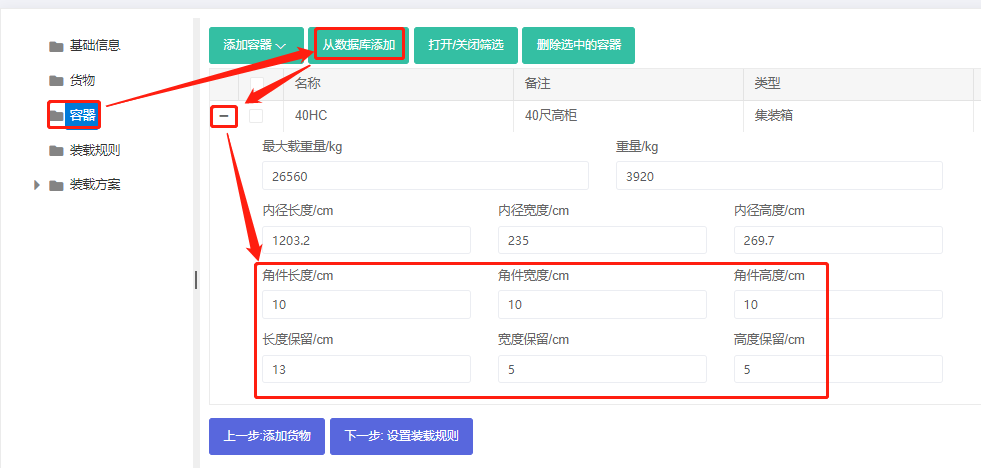
Step 2: Container → Add 40HC from database. Corner castings 10×10×10 cm and reserved sizes.
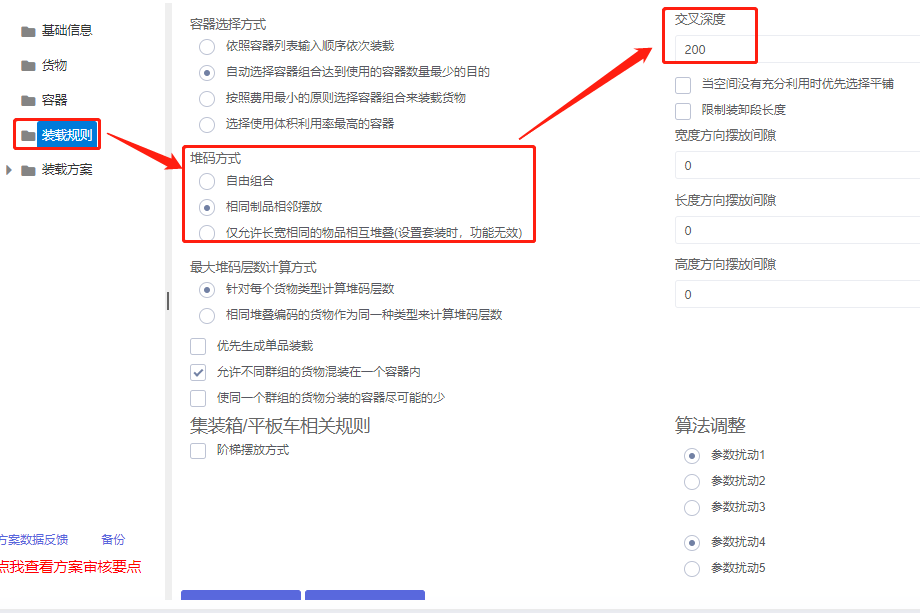
Step 3: Loading rules → set PileMode to "Place the same cargoes next to each other". Pay attention to cross depth — default 2 m. See Cross Depth for details.
Click Loading Result. Six 40HC are needed; the 3D views show the same cargo adjacent, but containers 1 and 2 still have unused space on top.
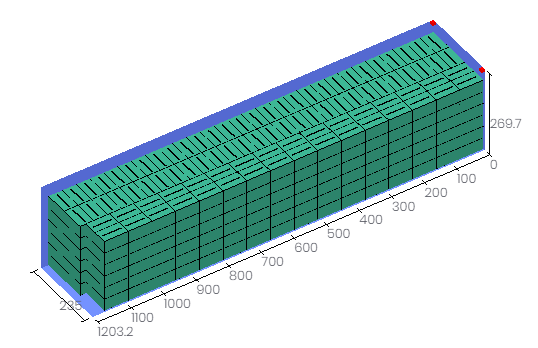
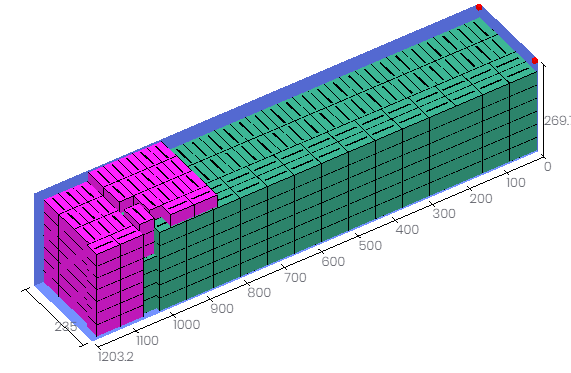
This is because of the 2 m cross depth. Setting it to 1200, re-calculate: now container 2 has cargo on top, but container 6 still has leftover C that could go on top of container 1.
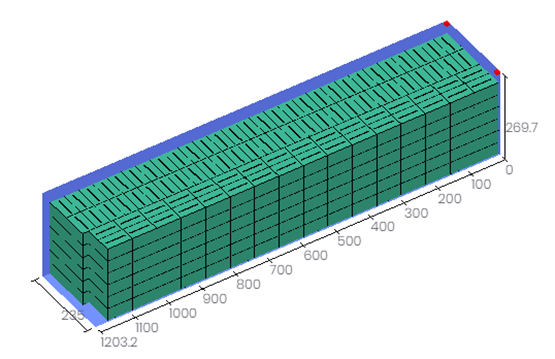
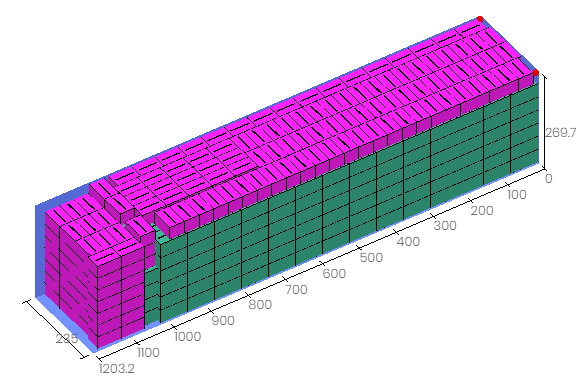
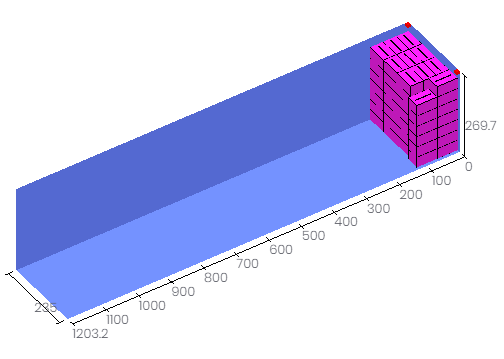
This is because "Place the same cargoes next to each other" operates within a single container in the length direction, not vertically.
Use the lock-and-recompute feature:
Click Final Loading Stage, lock containers 2, 3, 4, 5, then open Loading rules and change Stack method to Free combination.
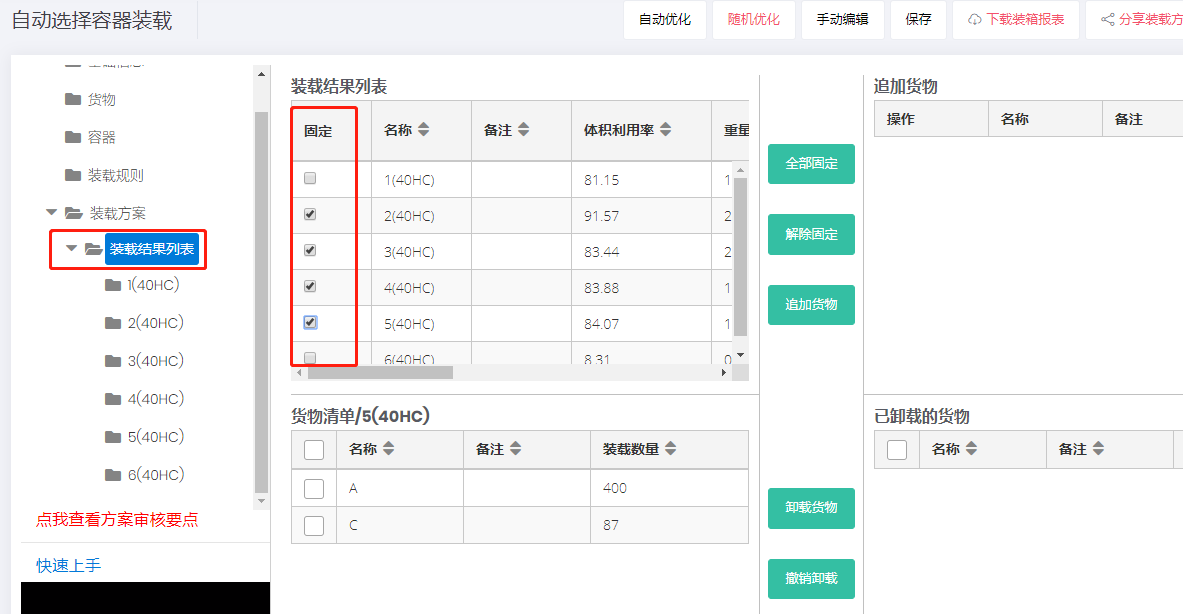
Click Loading Result. Containers 2–5 are unchanged; containers 1 and 6 get a new plan, using a total of five 40HC.
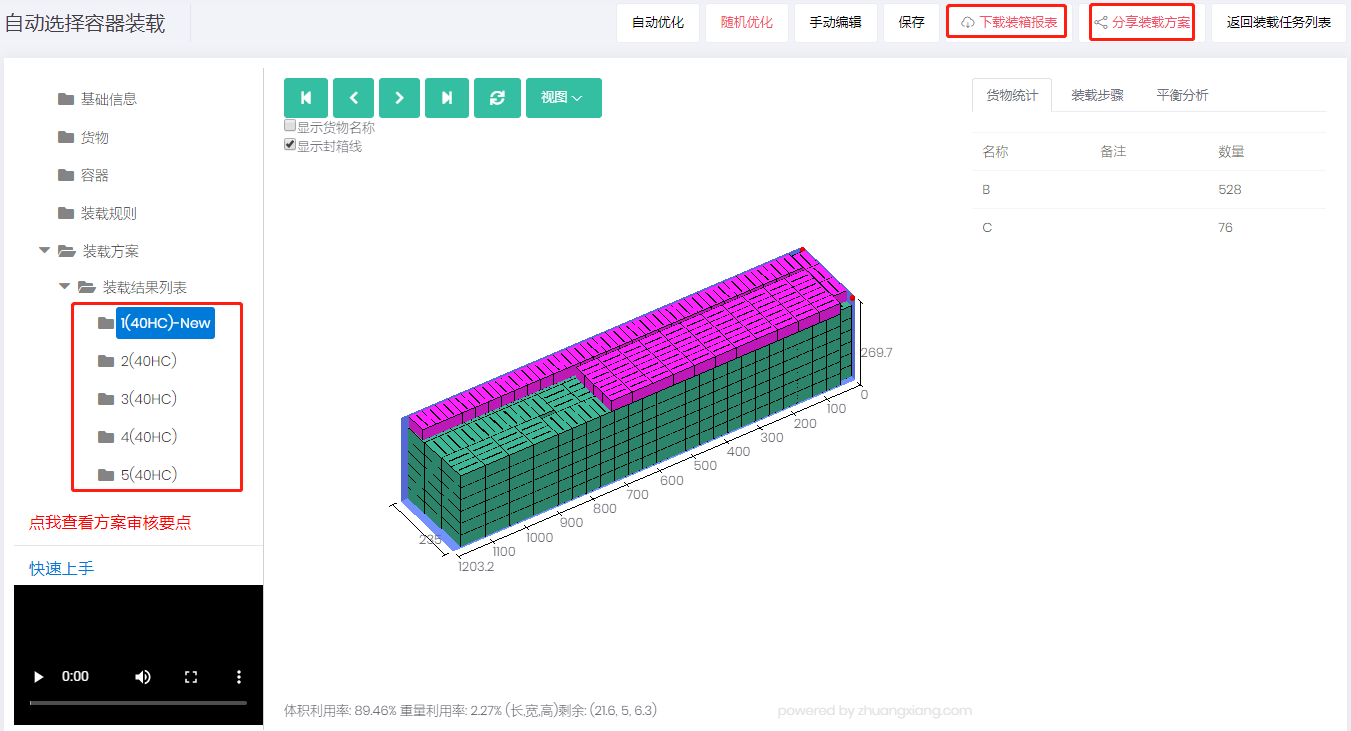
After review, share or download the report.