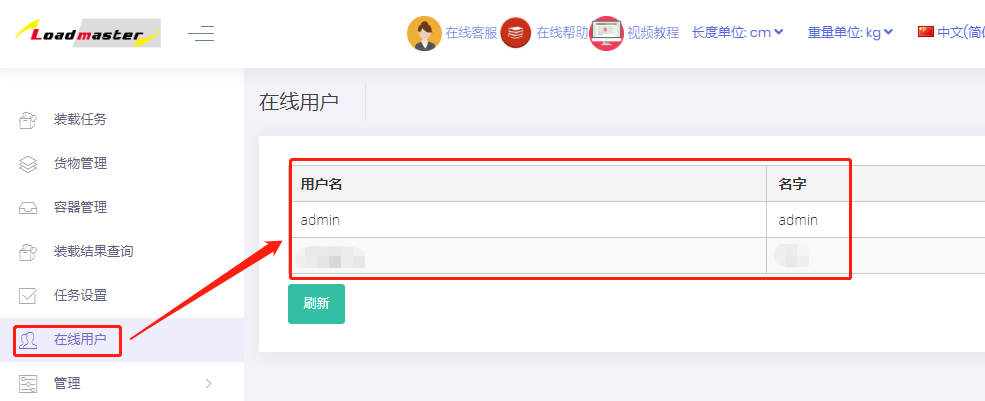
a. How to share data among multiple users under one tenant
If multiple people in a company use the software and you want data centrally stored and managed, you can create multiple users under one tenant for data sharing, and also set user permissions for convenient management. The specific steps are:
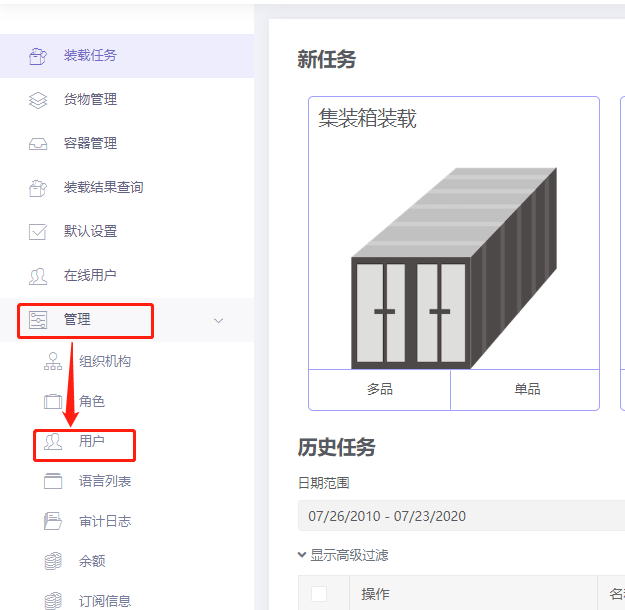
1) Sign in to the software and from the home page click Users under Administration on the left to enter the user management interface.
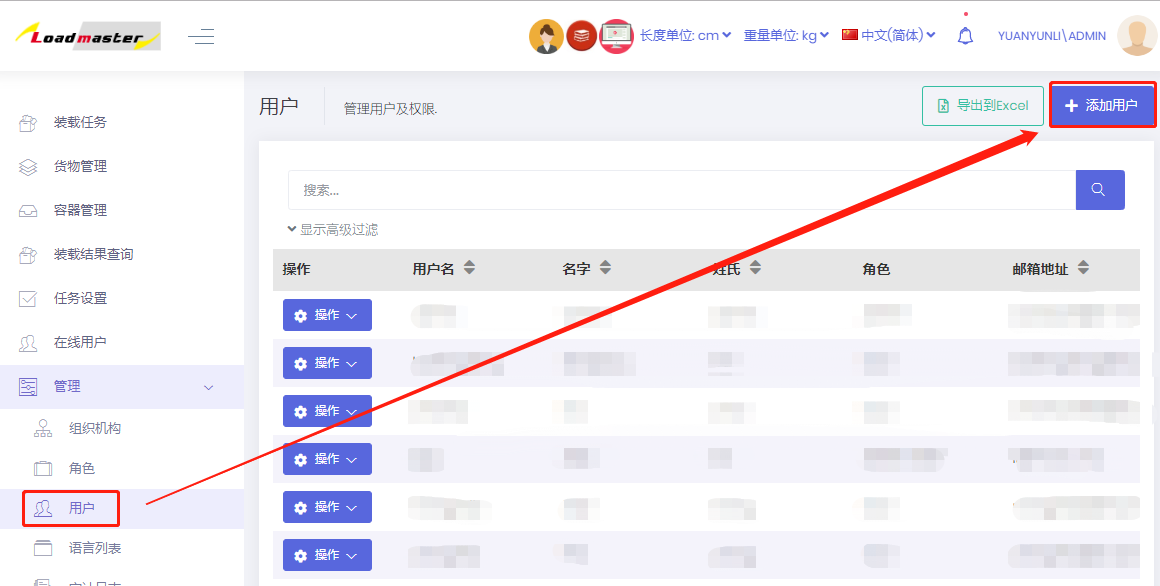
2) Click "Create new user" in the upper right to add users one by one.
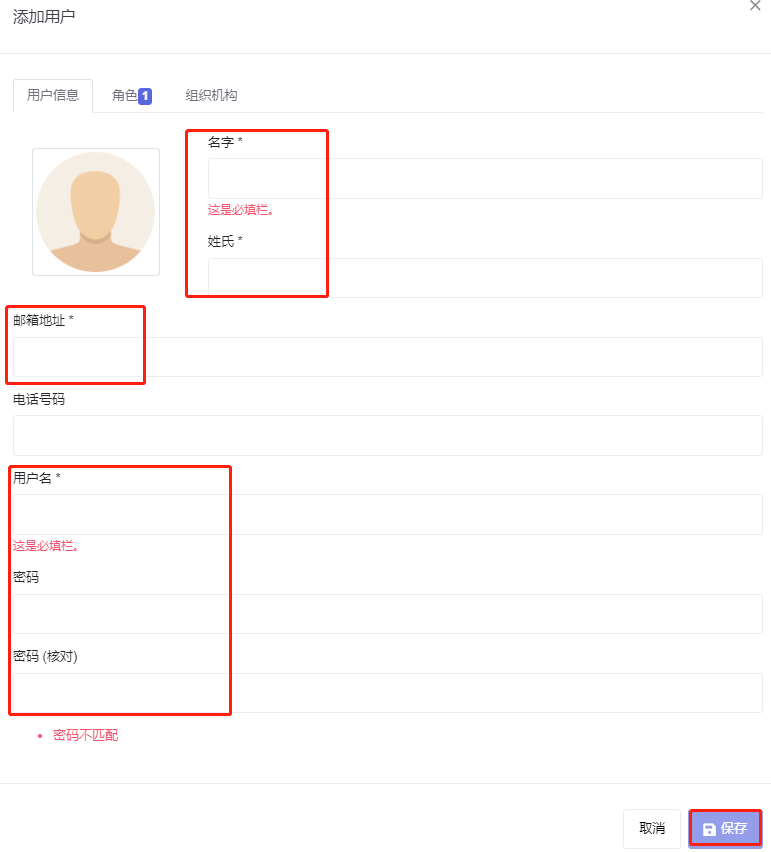
3) Edit the user information in the popup; fields marked with * are required. After clicking Save the system sends an activation link to the email address provided.
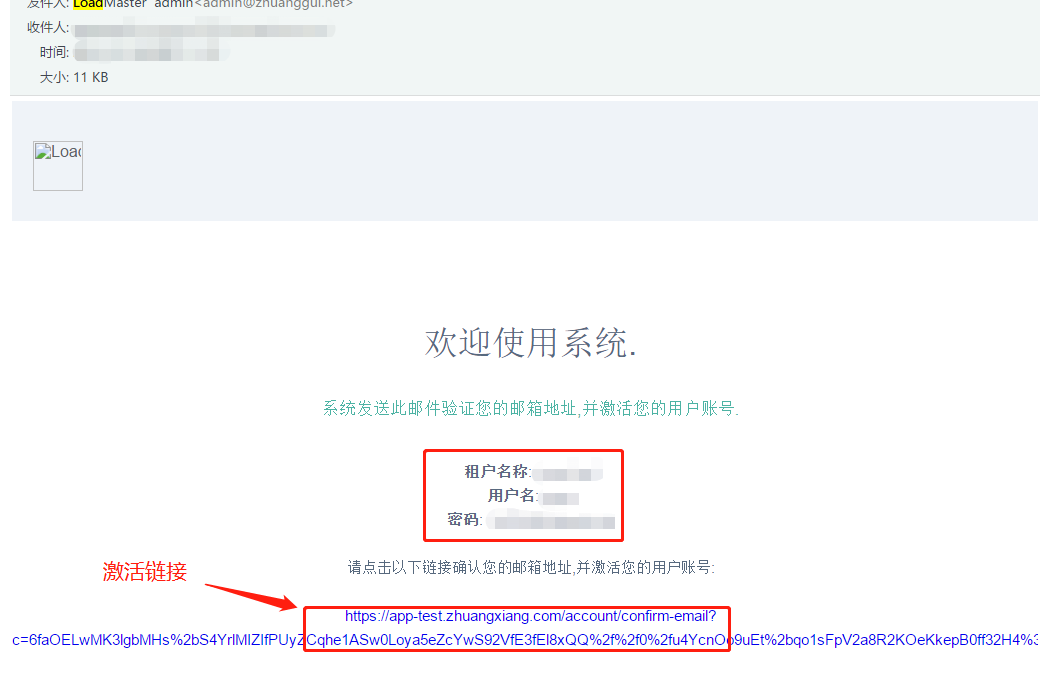
4) Sign in to that email. The email contains the tenant name, user name, password and activation link. Click the activation link to activate.
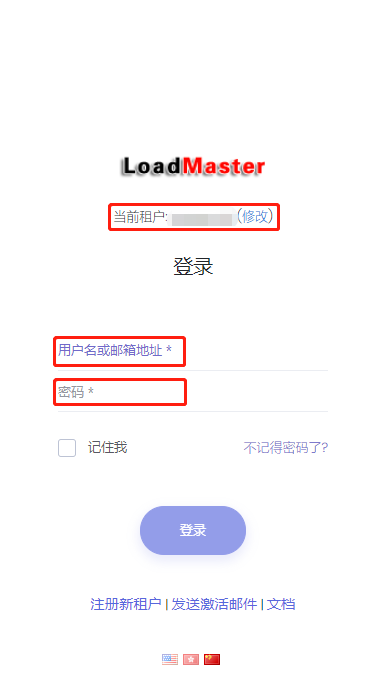
5) After clicking the activation link, you are redirected to the sign-in page. The current tenant is the same; enter the user name and password from the email to sign in.
6) After signing in, the user has no permissions by default. The administrator (admin) needs to set the user's permissions.
Click Permissions under Actions to the left of the user name to set permissions according to your needs.
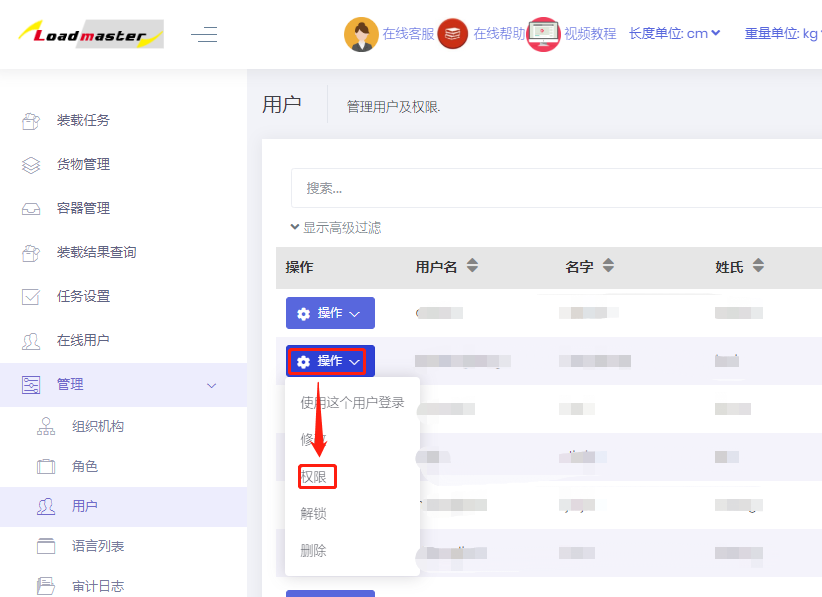
Check the permissions to be granted and click Save. 
Note: Click Online users on the left to see which users are currently online.