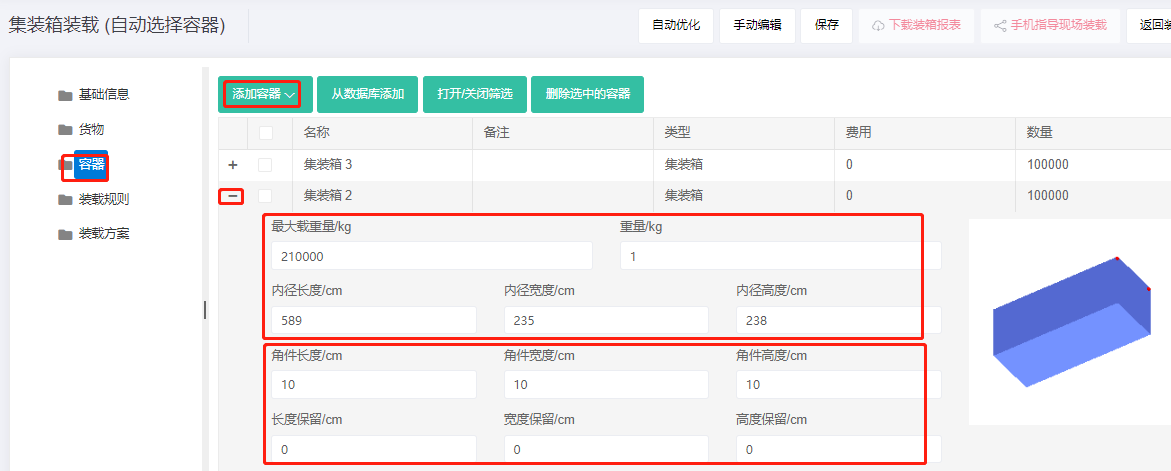
a. How to Add a Container
There are two methods to add containers: import from database and directly add — similar to adding cargo.
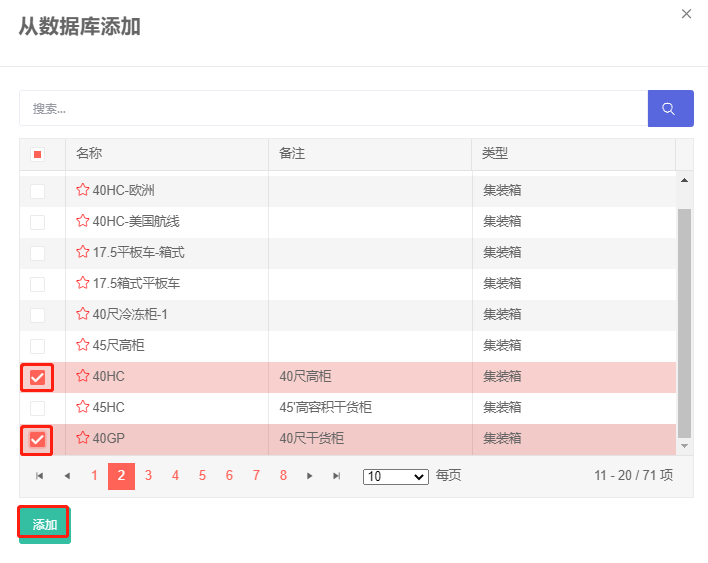
1) Import from database: the container database stores commonly used containers, including flat pallets, high/low flatbed trucks and containers. If the desired container is not in the database, add it to the database first; see Container management.
Steps: click "Import from database", check the needed containers in the popup, click Add, close the popup, then edit container properties. See Container properties.
If you want the software to automatically choose an appropriate container, simply import all containers of the same type; the software will pick the best one through calculation.
2) Directly add: when the needed container is not in the database, add it directly.
Click Add container-container. Only containers suit fopr this task type can be added — e.g., container-loading tasks allow only containers to be added; pallet-loading tasks allow only pallets to be loaded.
Then click the plus button and edit the container's length/width/height, max weight, etc., plus the parameters specific to its type. For example, users need to set corner-casting dimensions and reserved sizes; see Container Properties below for parameter details.