Excel Batch Import
When the order contains many cargo types, you can batch import cargo data via a fixed Excel template.
For example, here is how to batch import the nine cargo items in the table below.
| Cargo | Quantity | Length (mm) | Width (mm) | Height (mm) | Weight (kg) |
|---|---|---|---|---|---|
| SYD500R | 10 | 860 | 950 | 2020 | 10 |
| SYQ500R | 10 | 860 | 980 | 2020 | 8 |
| SYW900RH | 1 | 980 | 980 | 1120 | 7 |
| SYT15-15L | 42 | 680 | 600 | 640 | 5 |
| SYT15-11LK | 52 | 610 | 600 | 600 | 3 |
| SYT18-18LK | 10 | 820 | 710 | 790 | 8 |
| SYT12-12L | 12 | 590 | 520 | 560 | 2 |
| SYQ315R | 16 | 670 | 550 | 610 | 5 |
Specific steps:
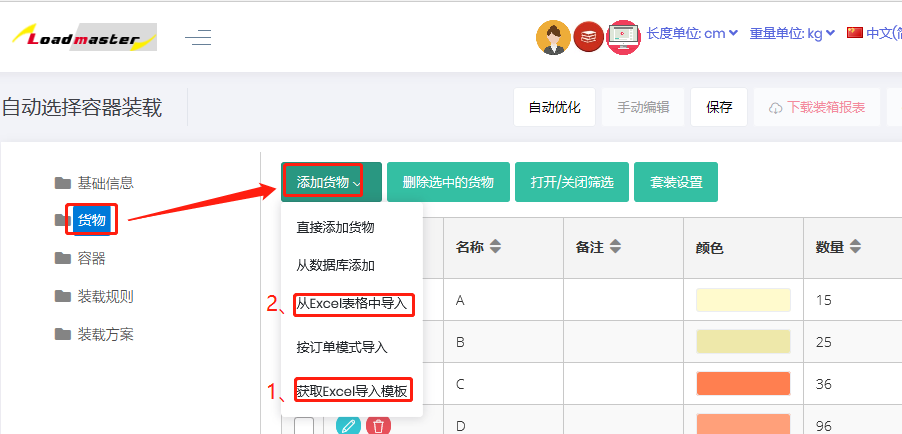
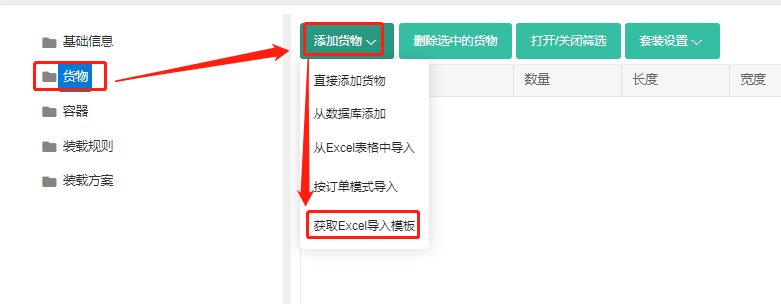
1) On the Cargo interface, click Add cargo → Get Cargo Import Template, download the template and save it to your computer.
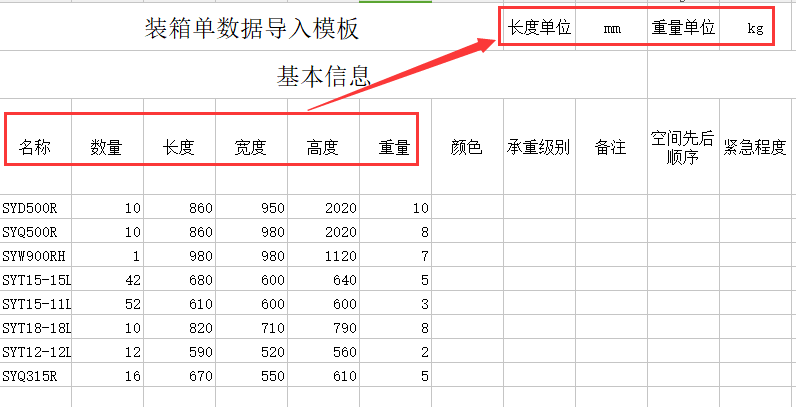
2) The downloaded Excel template would be openned automatically. Read the instructions, delete them and begin filling in the template.
① Copy and paste the cargo name, quantity, length/width/height and weight — these are required. Note: the order uses mm as the size unit, so the template's length unit should also be set to mm. Weight refers to the gross weight per item; if cargo is light, you can omit it — the system uses "1" by default.
② Fill in the Placement Constraints. There are six ways of placement: Stand, Stand & Rotate; Side, Side & Rotate; Lay, Lay & Rotate. Leave it blank or enter 1 to allow this placement; enter 0 to disallow. For example, allow only Stand and Stand & Rotate. "Support Others" defines whether the cargo can only be stacked with itself and cannot bear other types of cargo. Leave it blank or enter 1 to allow; enter 0 to disallow.
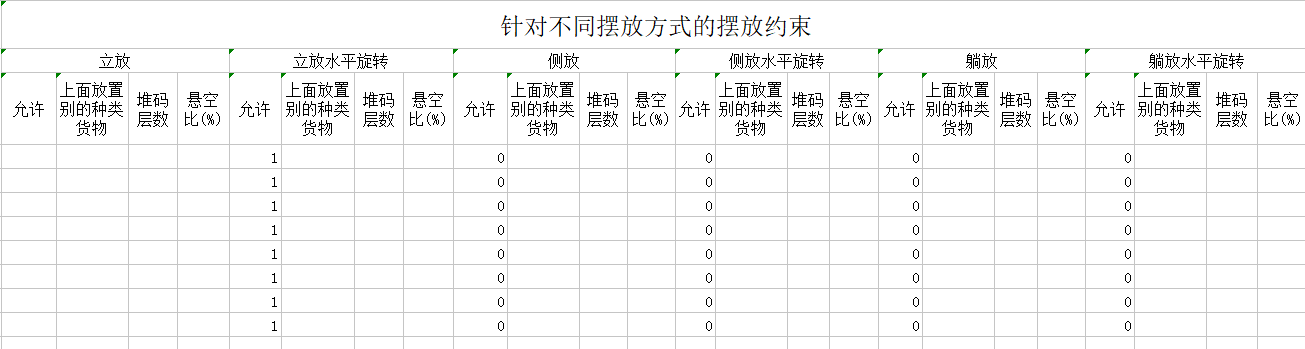
"Stacking layers" is the maximum number of layers the cargo can be stacked with itself. Leave it blank if there is no requirement.
"Overhang ratio" — leave it blank if there is no requirement. See the online help for details.
③ Fill in cargo loading attributes: Only fill in the needed parameters and ignore others. See the online help for details on each parameter.
If a load plan has a "heavy below, light on top" loading requirement, use "Stacking Orders". The Stacking Orders represents the cargo's bearing capability. It is a relative value: the larger the value, the stronger the bearing capability, and the more the item goes on the bottom. Cargo with a larger "Stacking Orders" number would be placed at a lower level. The system default value is 10.
If a load plan has a loading-sequence requirement, use "Loading Sequence". The loading sequence represents loading order; it is a relative value: the larger the value, the earlier the item would be loaded. The system default value is 0.
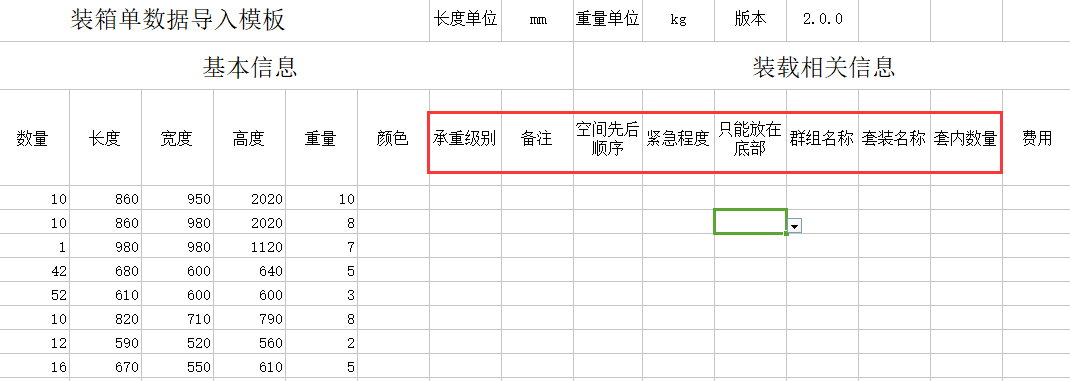
3) After finishing the template, save and close, then return to the software. On the Cargo interface, click Add cargo → Import from Excel, locate the completed template in the popup, and click it open — all cargo data would then be imported into the software.