r. How to use manual editing to adjust the cargo center of gravity
Japanese expert tests show that when the container's loaded weight is close to its limit, the lateral/longitudinal CoG offset should be within 10%; when much lower, the offset may slightly exceed 10%. If the auto-generated plan does not meet this, manual editing can adjust the CoG.
Example: a sea container plan computed as below.
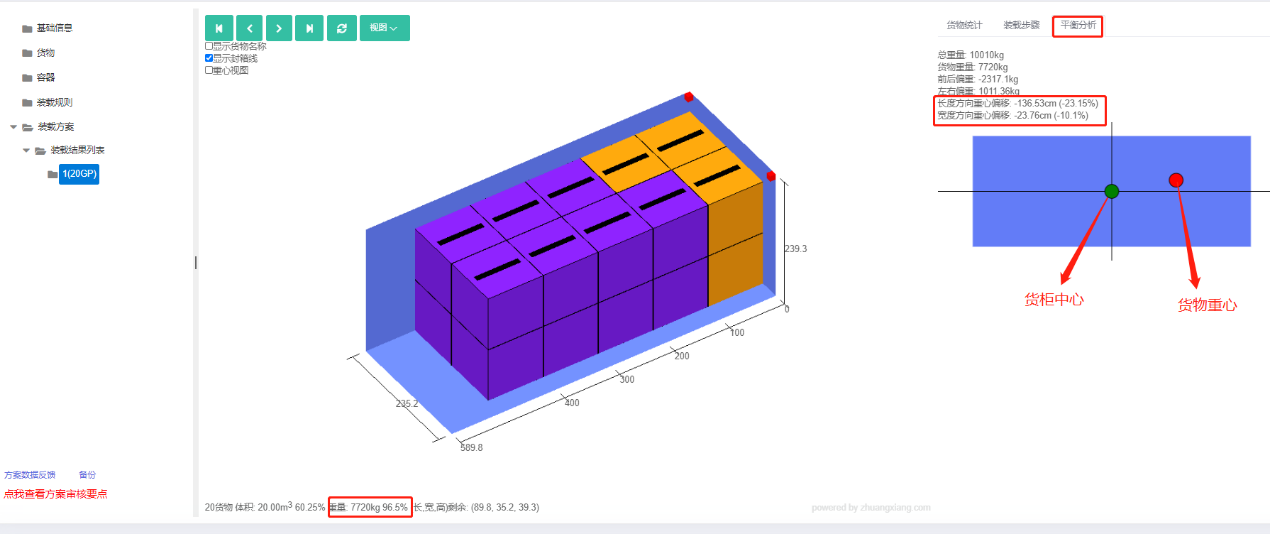
The lower-left of the 3D view shows weight utilization 96.5% — close to the limit — but both length and width CoG offsets exceed 10%. Use manual editing.
The balance plan view shows the length-direction CoG biased toward the front, so swap the heavy cargo at the front with the light cargo at the rear; the width-direction CoG is biased toward the left, so swap the heavy cargo on the left with the light cargo on the right.
Click the Manual edit button at the top.
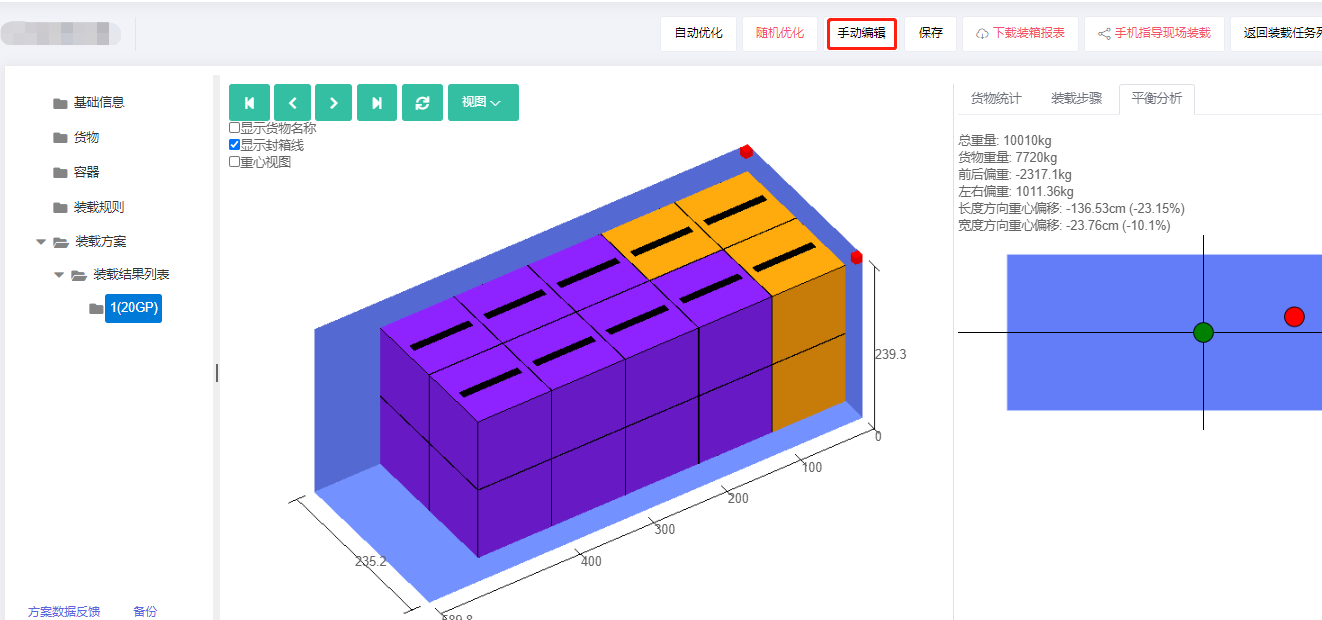
First, swap front-heavy with rear-light:
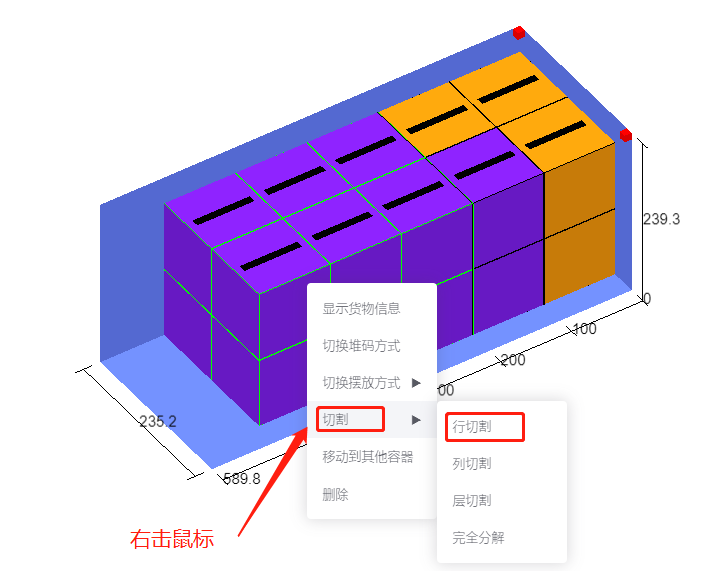
1) Right-click the last row of purple cargo → Cut → Row cut.
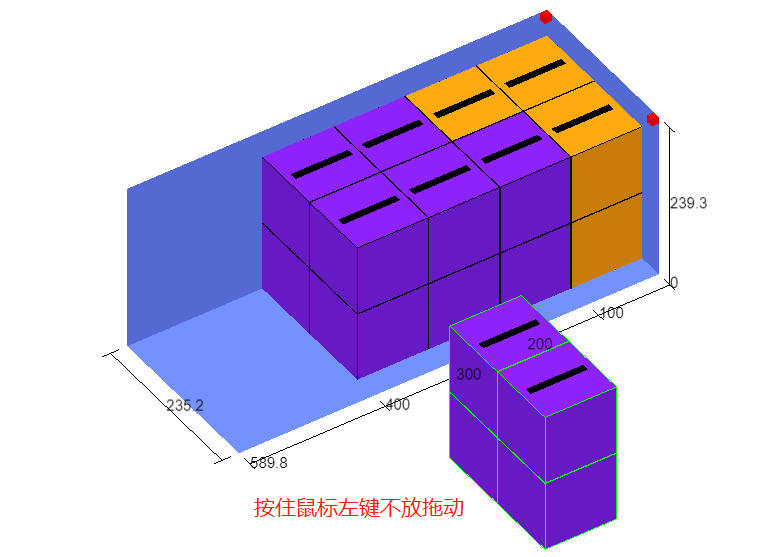
2) Select the cut purple row, hold the left mouse button and drag it out of the container.
3) Select the first row of yellow cargo and drag it to the last-row position. When approaching other cargo it will pop up — hold Ctrl with the left hand and drag with the right hand to place it.
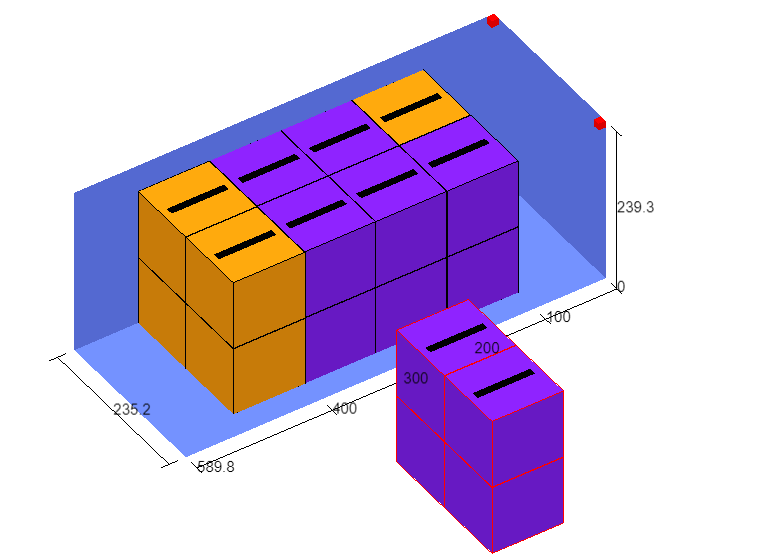
4) Similarly place the purple cargo at the very front.
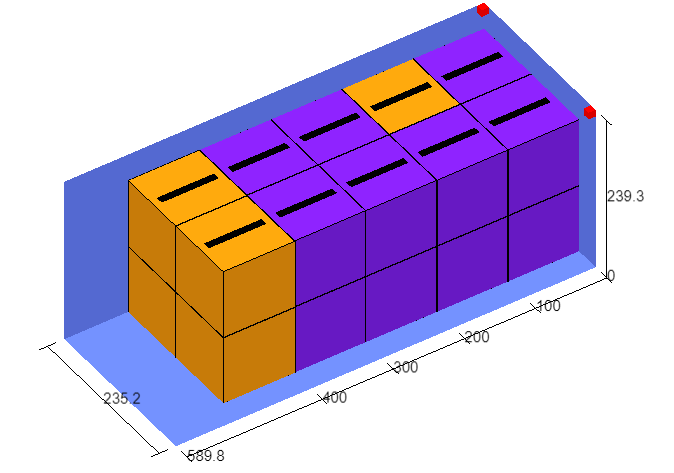
The live CoG offset in the lower-right now shows length-direction CoG within 10%.
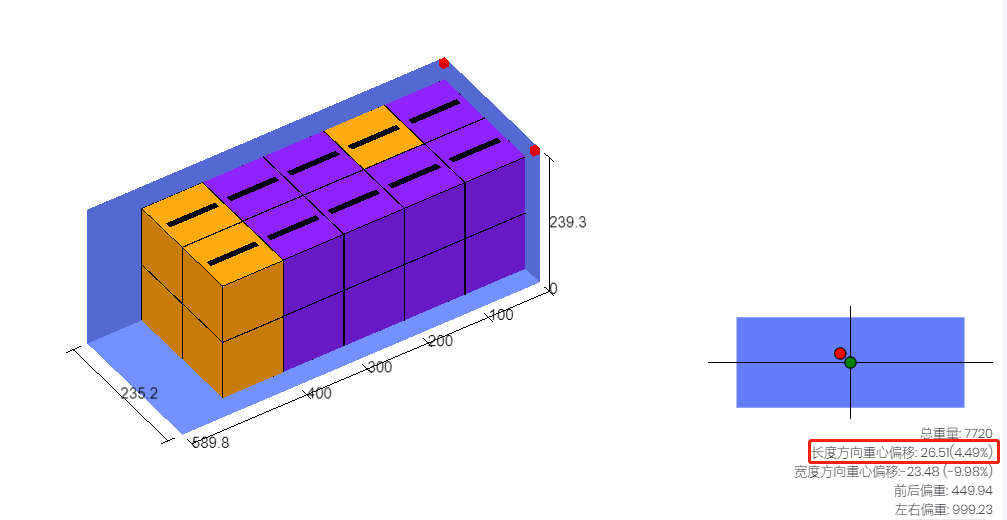
Then swap left-heavy with right-light:
1) Select the yellow cargo in the second row and drag it out of the container.
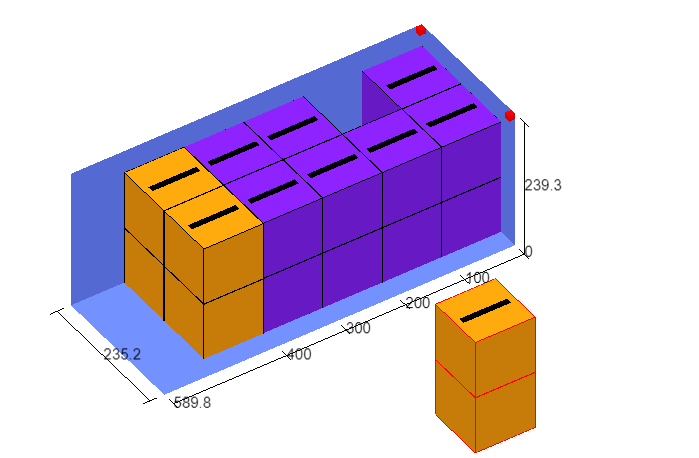
2) Select the purple cargo in the second row, hold Ctrl, drag to the container's left.
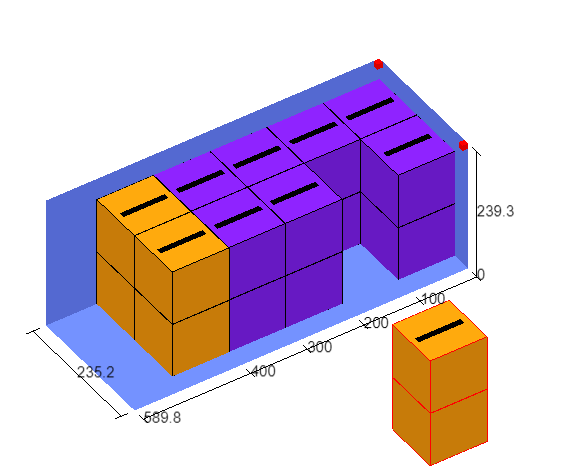
3) Move the yellow cargo (now outside) to the gap in the second row. If Ctrl+drag does not place it, hold Ctrl and click the Move → Left button below until part of the cargo enters the gap, then drag.
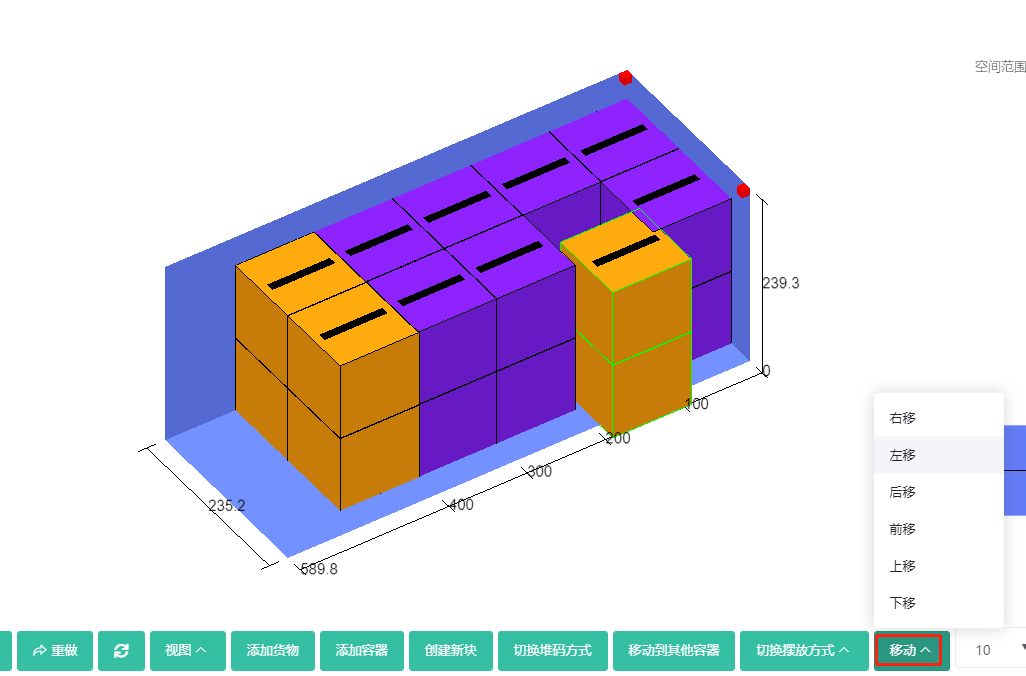
Width-direction CoG offset is now within 10%.
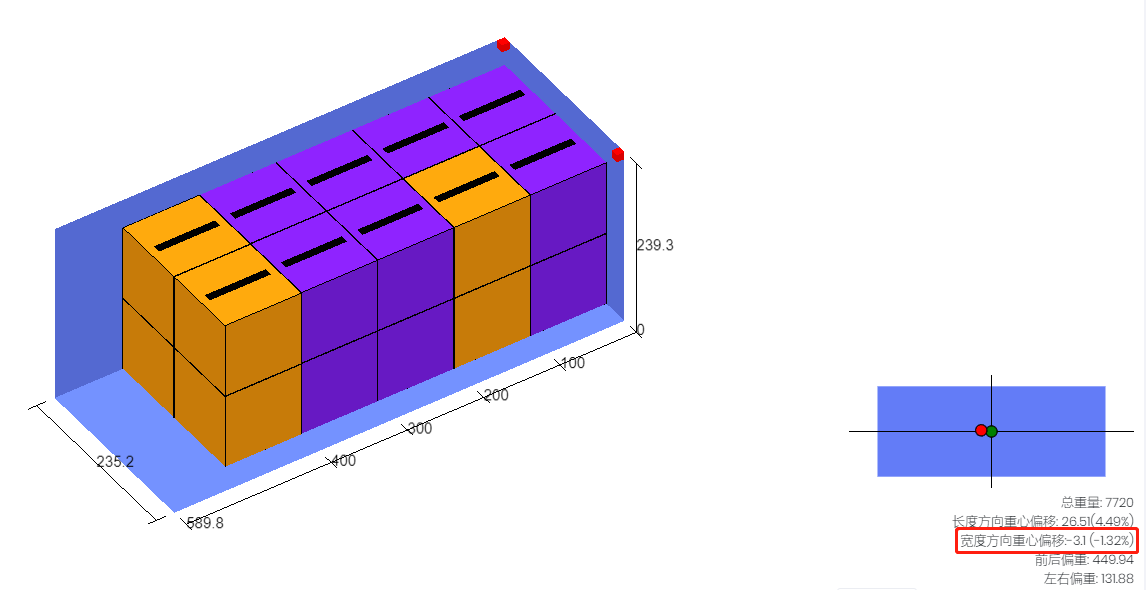
Click Save in the lower-right.
For other manual-edit features, see the Manual Edit section above.
Tips:
1) Red outline = outside the container; green outline = inside.
2) To move cargo, hold the left mouse button.
3) To place cargo precisely, hold Ctrl with the left hand and drag with the right; release only after positioning.
4) To group multiple loading blocks, hold Ctrl and click each block.
5) Click Undo to revert the last action.
Notes:
1) If you click Loading Result again, the manual edits are lost.
2) If you cannot move cargo out: the Ctrl key may be stuck; tap it firmly.
3) If the mouse does not behave well, try another mouse.
4) Manual editing may make you feel difficult at first; usage becomes fast after about a week.